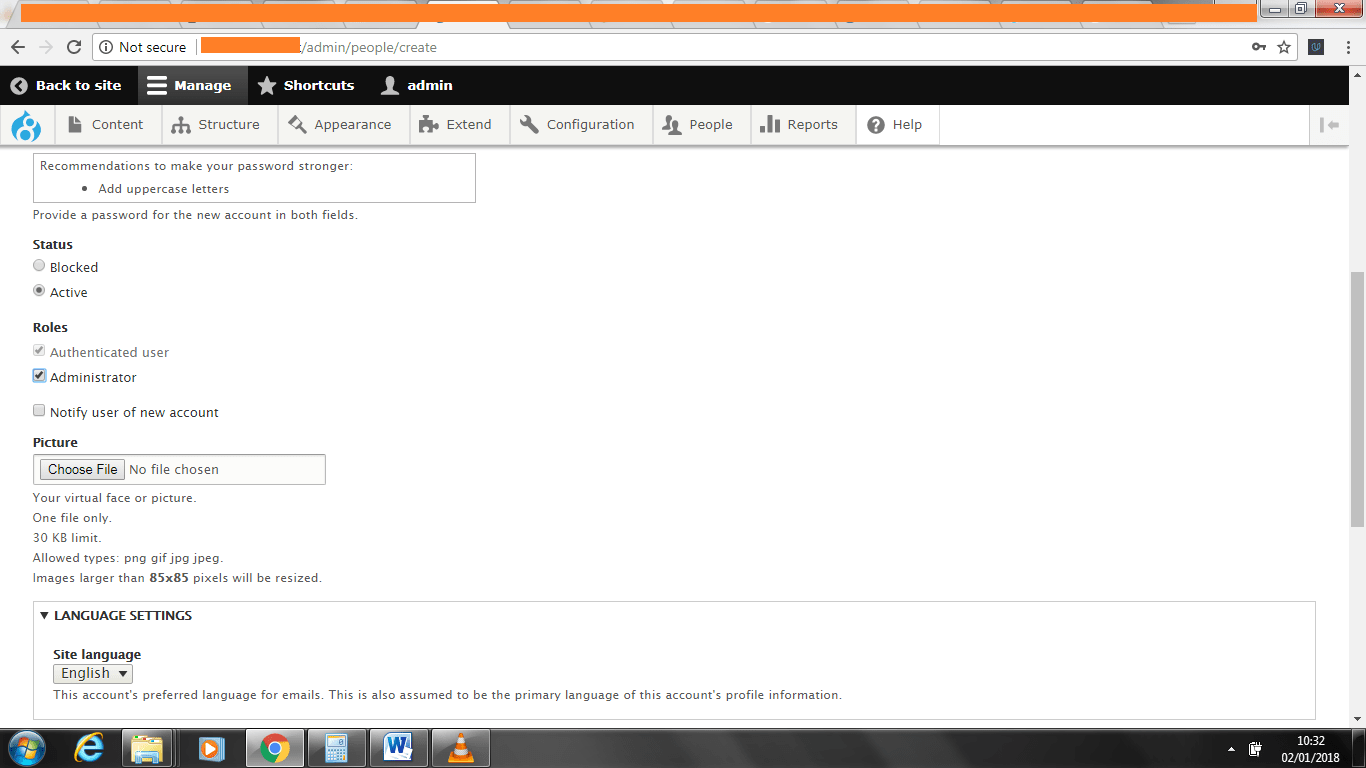
This is the second part of instaling Zircon theme using Drupal 8 and cPanel.
For part one visit https://kbos2hm.co.uk/workshop/installing-zircon-drupal-8-cpanel
You need both parts.
Now the website should be fully installed and its time to install
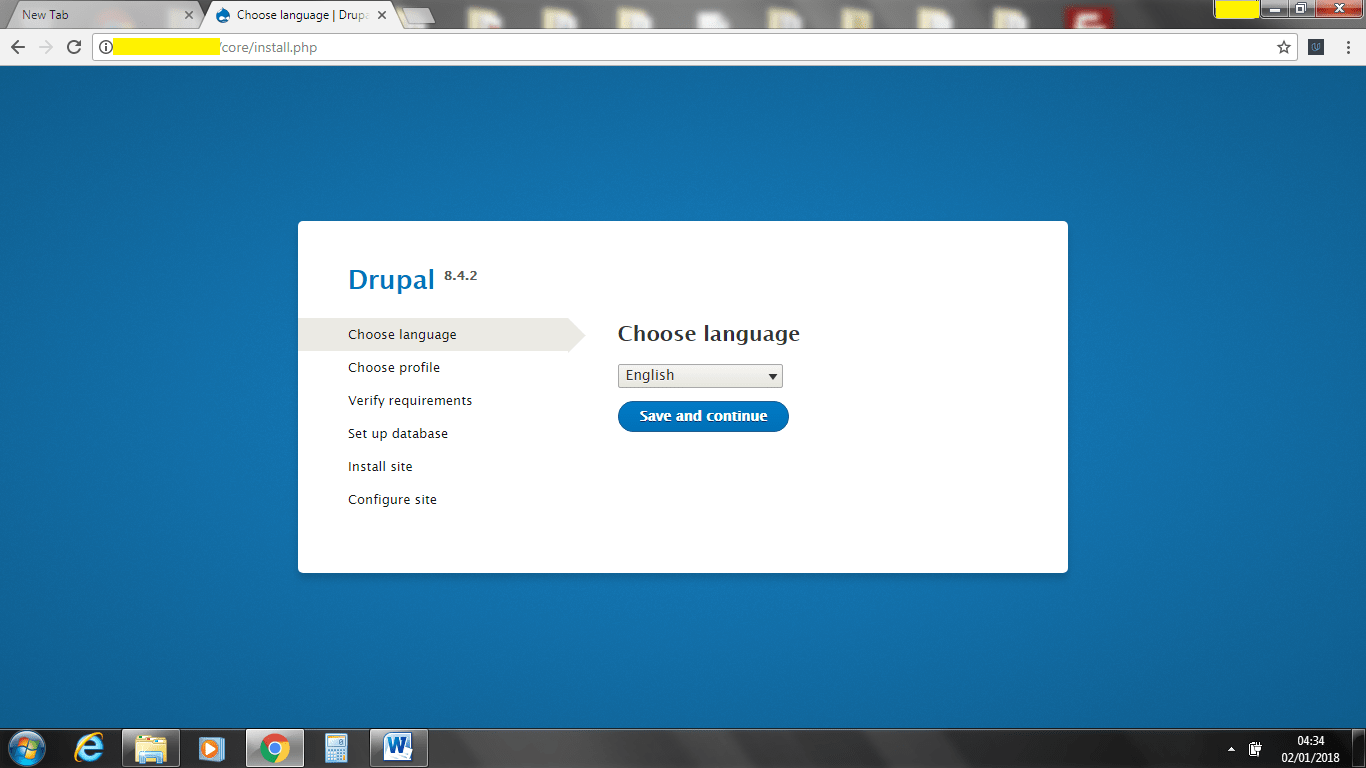
22. Choosing you language is pretty simple. For SEO purposes use the language of your country. You have to always keep you audience in mind.
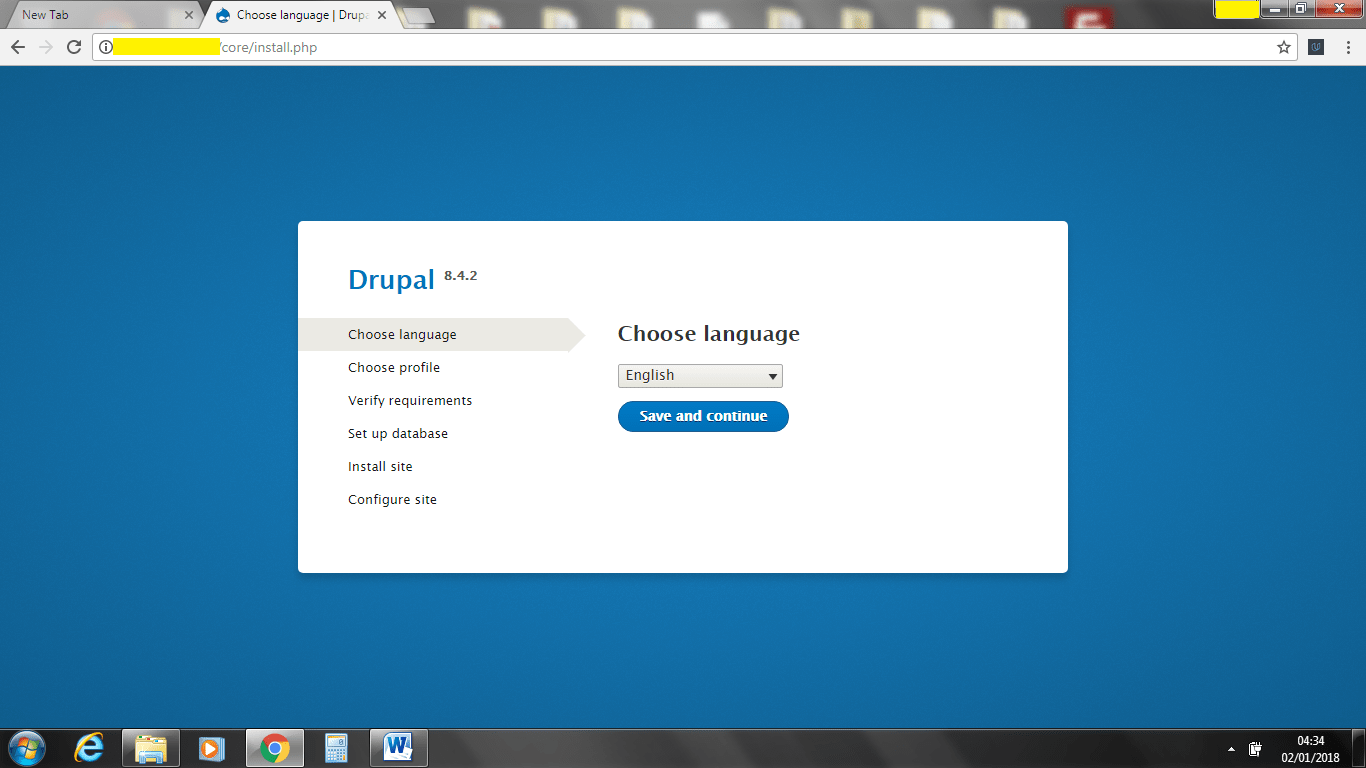
23 Choose standard installation because you want all the parts for your them. I have not tested it with minimum but I would not go that direction.
24
You have already created the database earlier so this part is simply putting them into this page.
It is worth noting here sometimes with data bases and the way the configuration is set up for you server you don’t always need the first part of you database. IE kevin_database if this is the case simply the first part out this would be the same for both the username and database name.
If you have forgotten you database name follow head back over to cPanel to get it like below.
Don’t close the tab for installing Drupal 8
If you don’t remember creating your database if you have forgot the names just go over to your database screen.
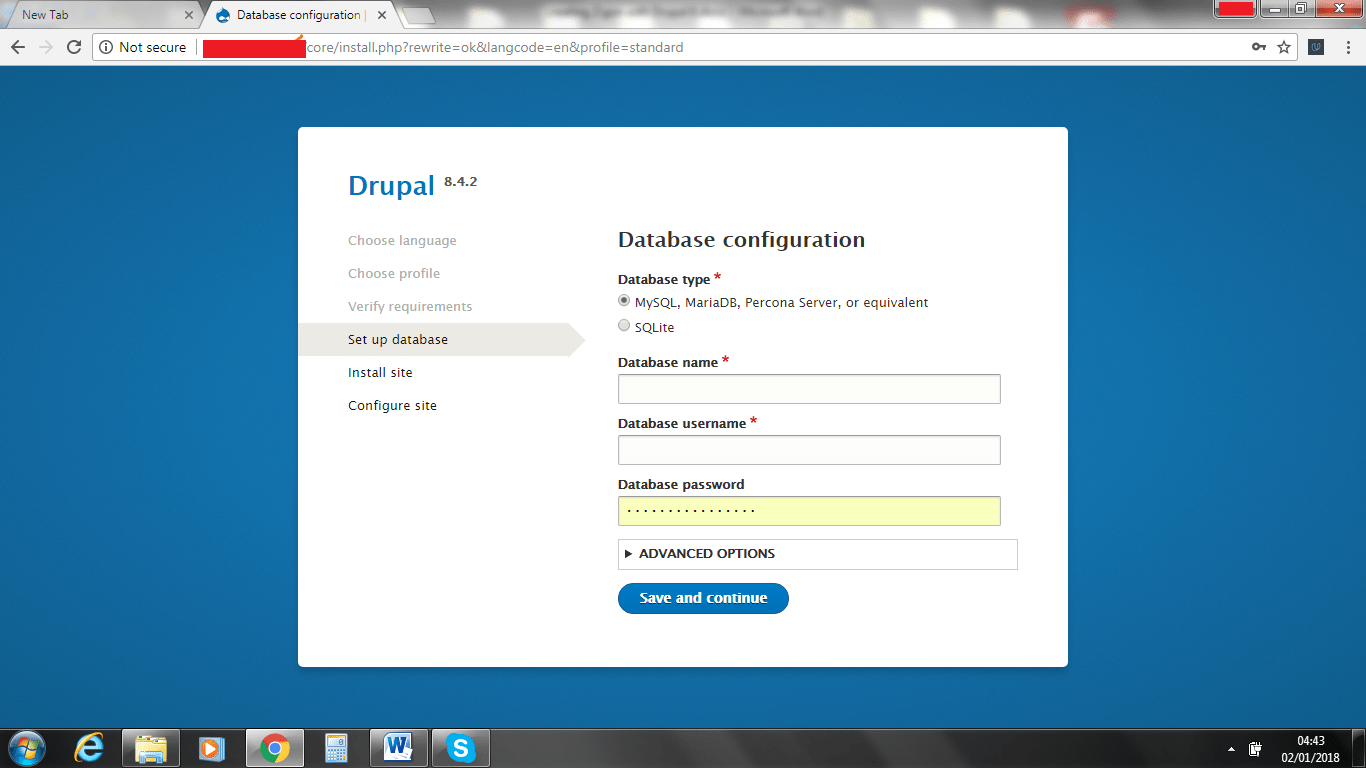
25 You can see above the database that i have already created is still there in cPanel.

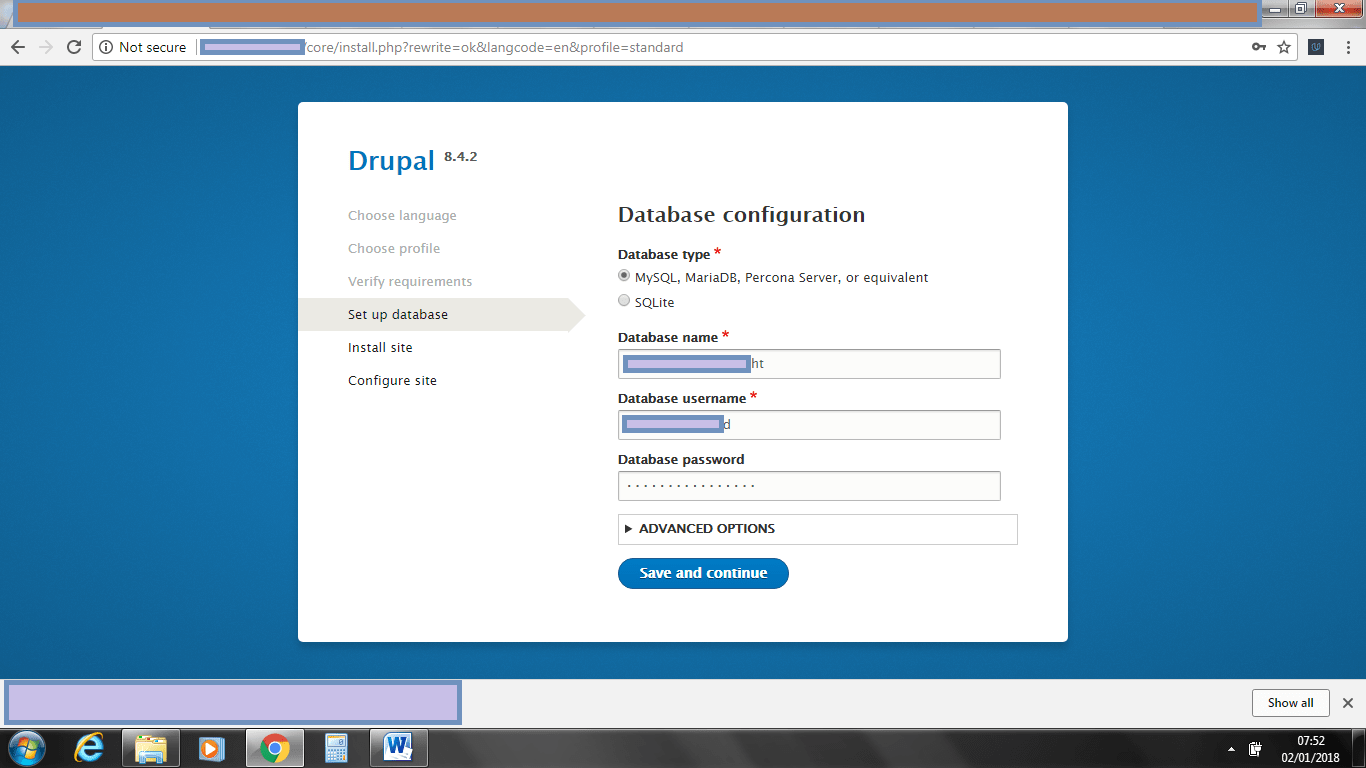
26 Once you have filled the following in press save and continue. If you are getting problems more than often it’s going to be the wrong password or user name.
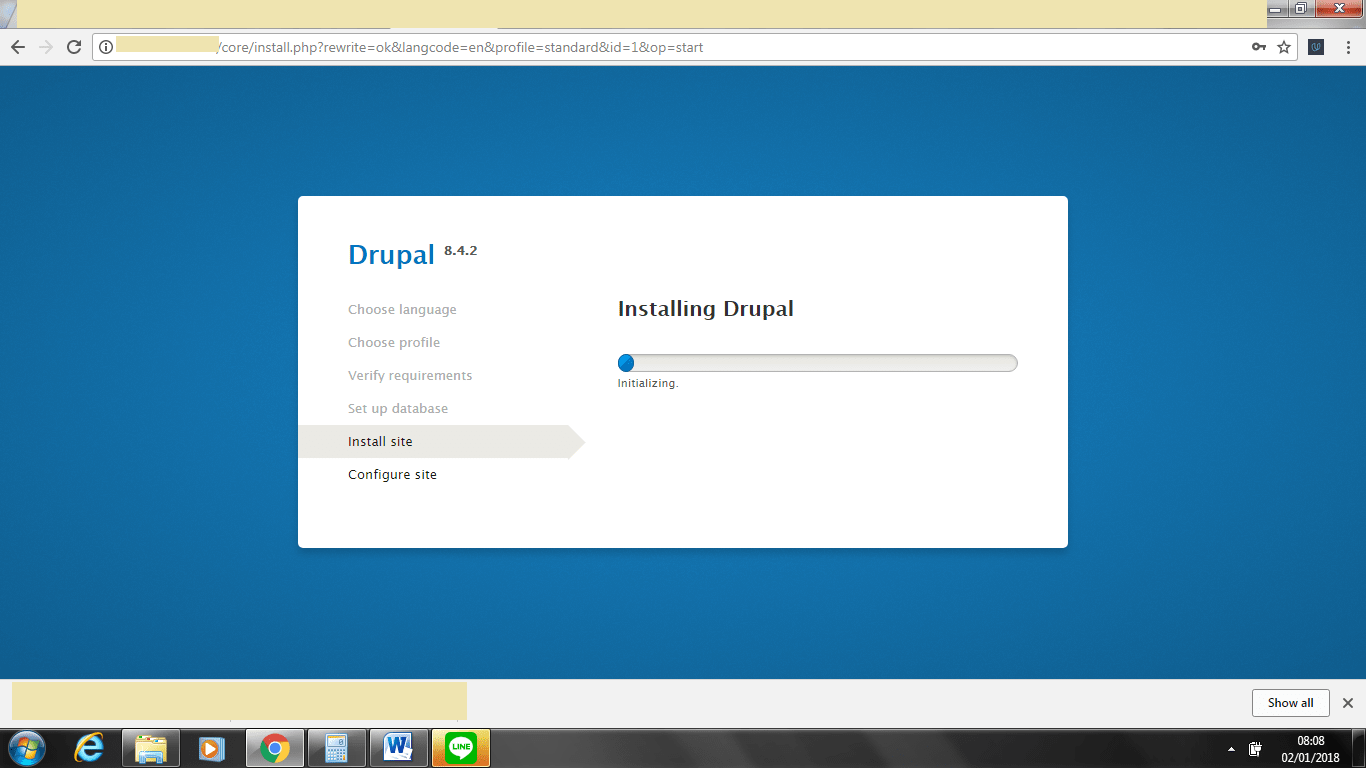
27 Drupal should now be instaling this will take a little while. Time to grab a coffee.
28. Once this has finished you will be brought to another screen. You can name you site what you want. My site is called kbos2hm but you can call it what you want. With the site email address I tend to use Google because a lot of the times things get stuck in Yahoo mail. With your user name think of you site and add a few numbers. I add the numbers because it makes it harder for random bots trying to log into my site. Make sure you choose a good password.
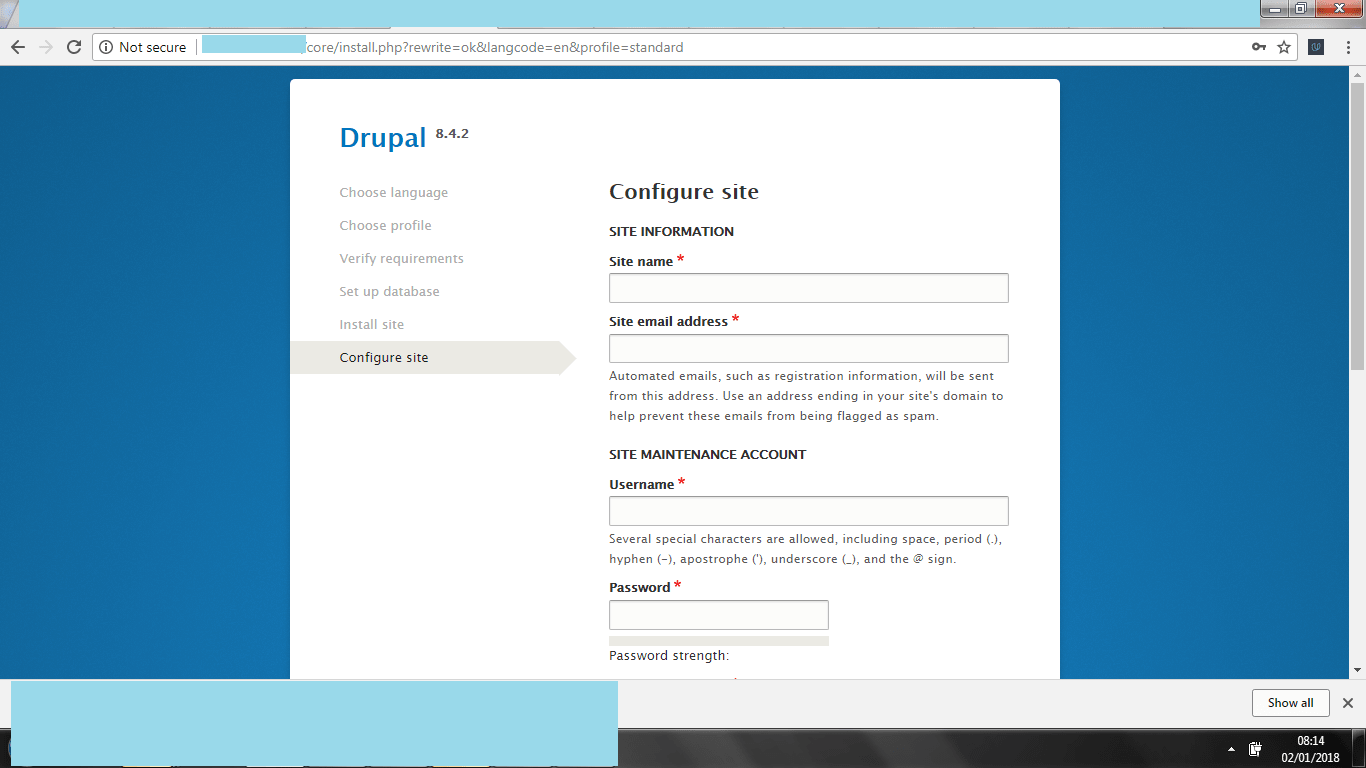
29 Make sure to set the correct time for your time zone and then click continue.
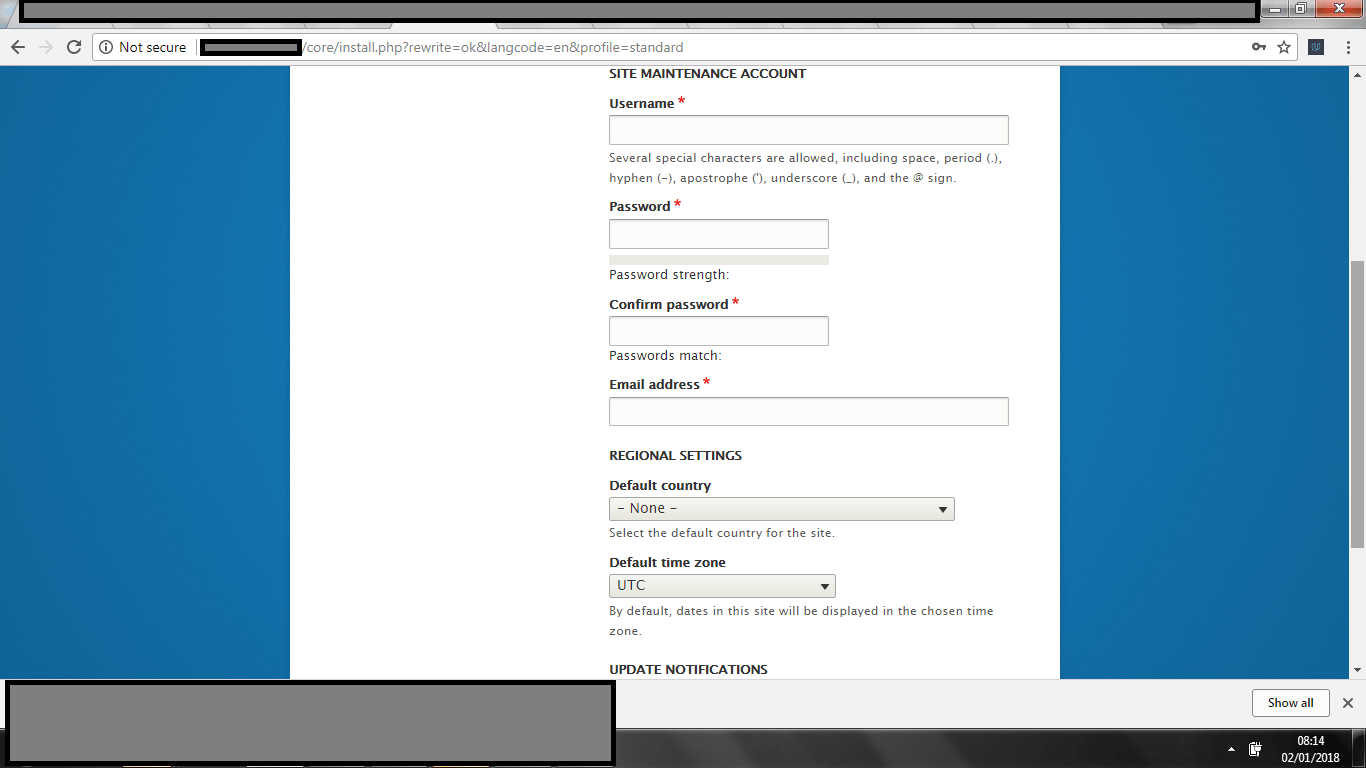
30 So now you should be fully installed without the demo content. Drupal should have a nice bar like above for admin.
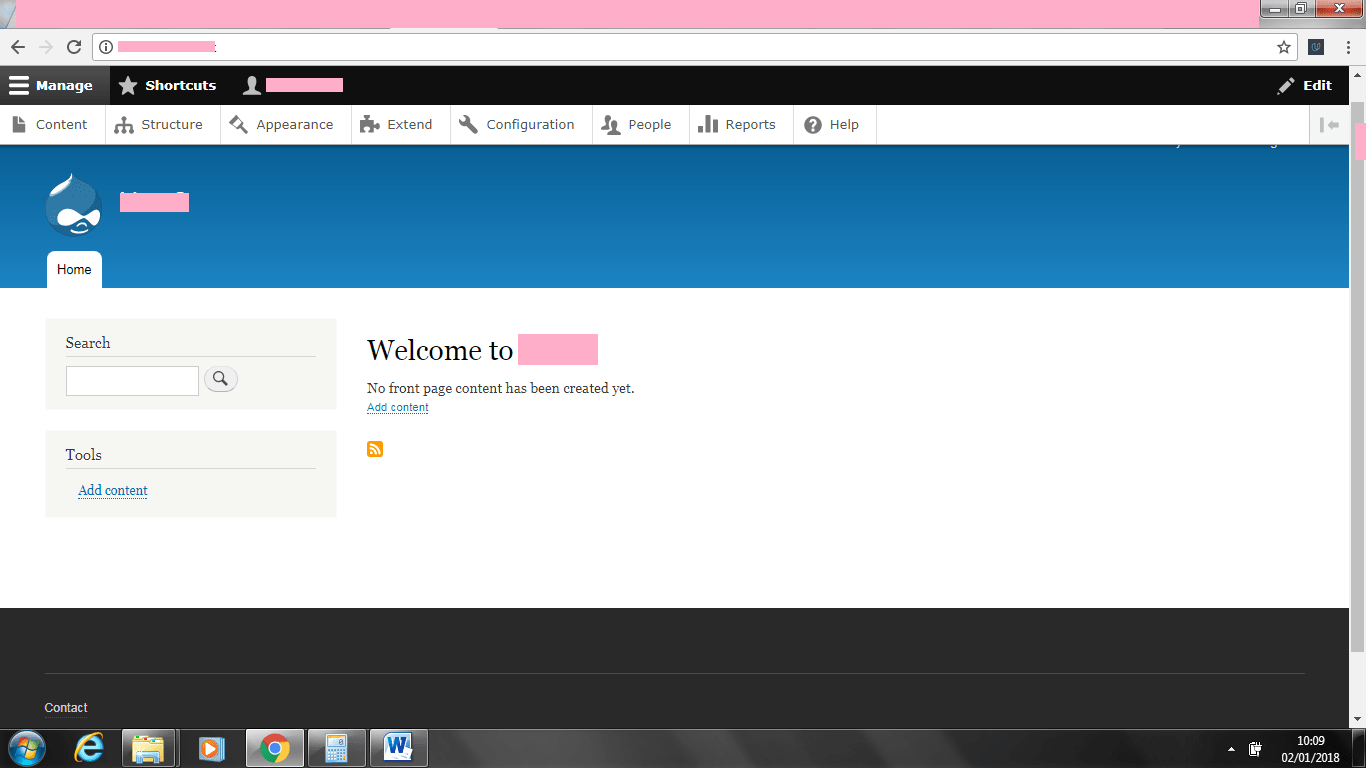
31 Time to head back over to cPanel now to install the demo content. You need to click on phpMyAdmin
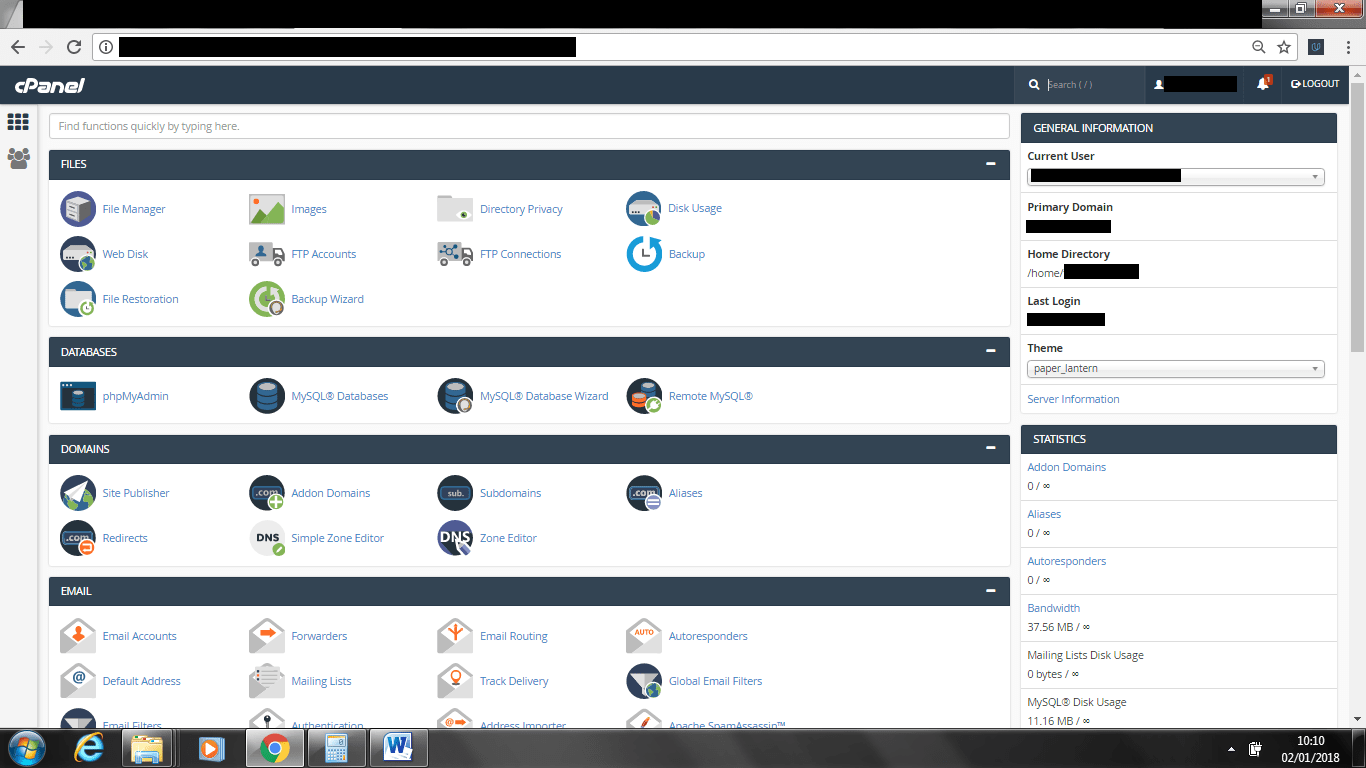
32 The next part is important you need to be editing your database you created. Just in case you have other databases check back on cPanel to make sure you have the right database. You can also see below that block new etc are in the database. Right click on your data base on the left hand side.
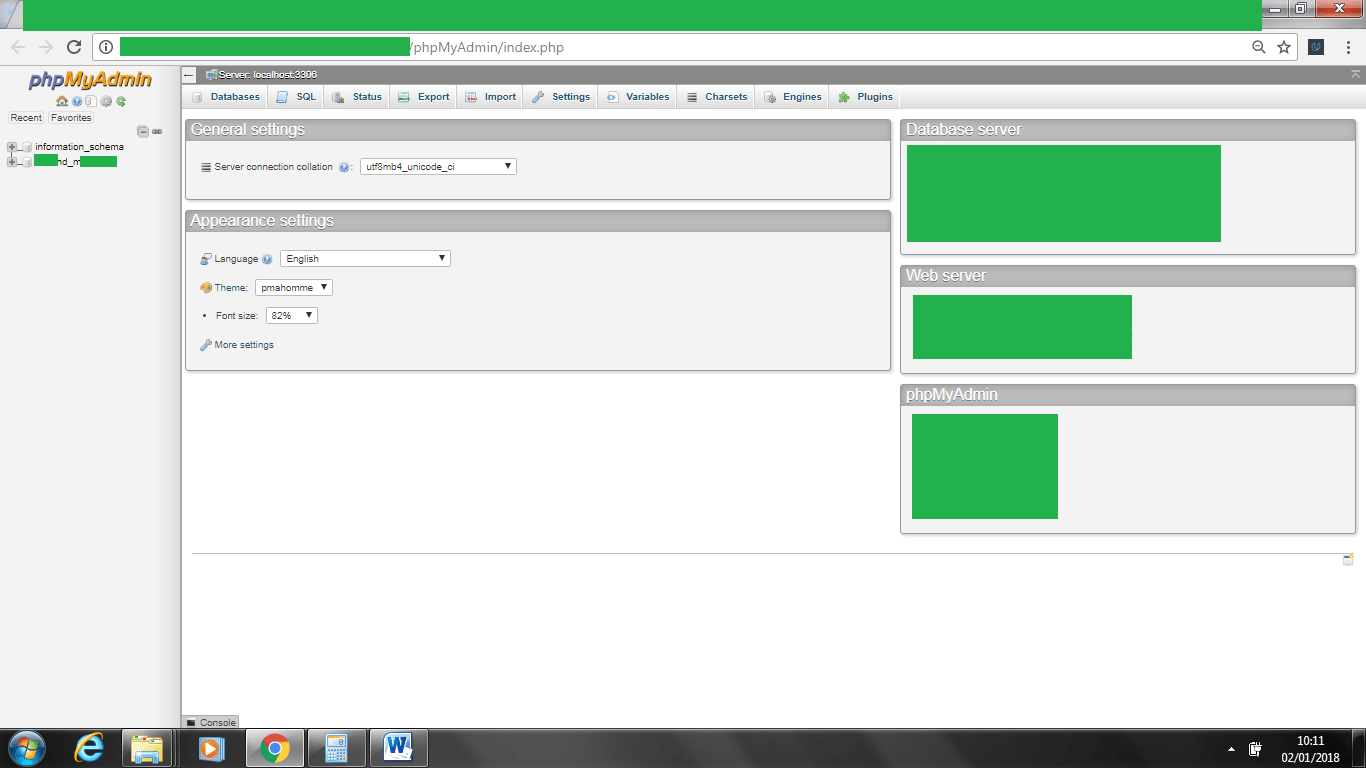
33 Your database will pretty much look like above (MAKE SURE IT IS)
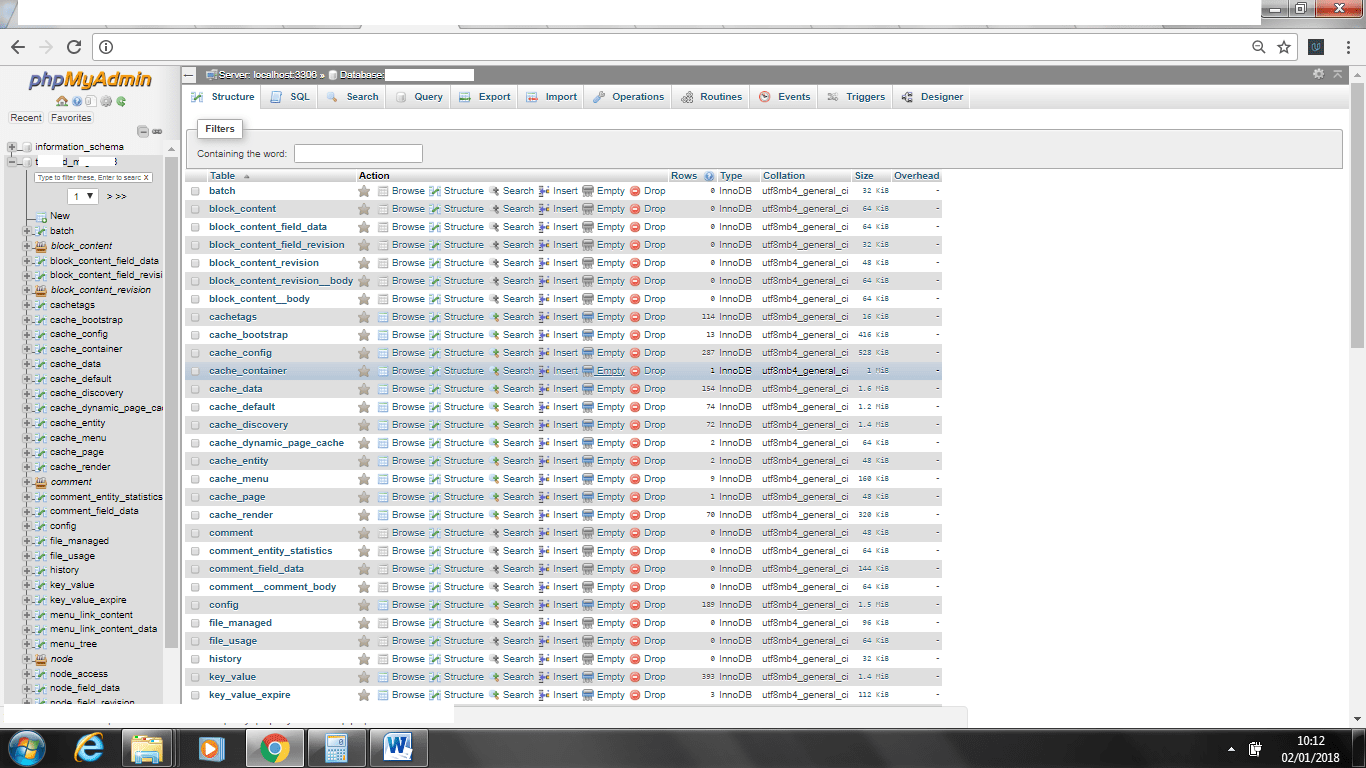
34 34 once you have this click on import.
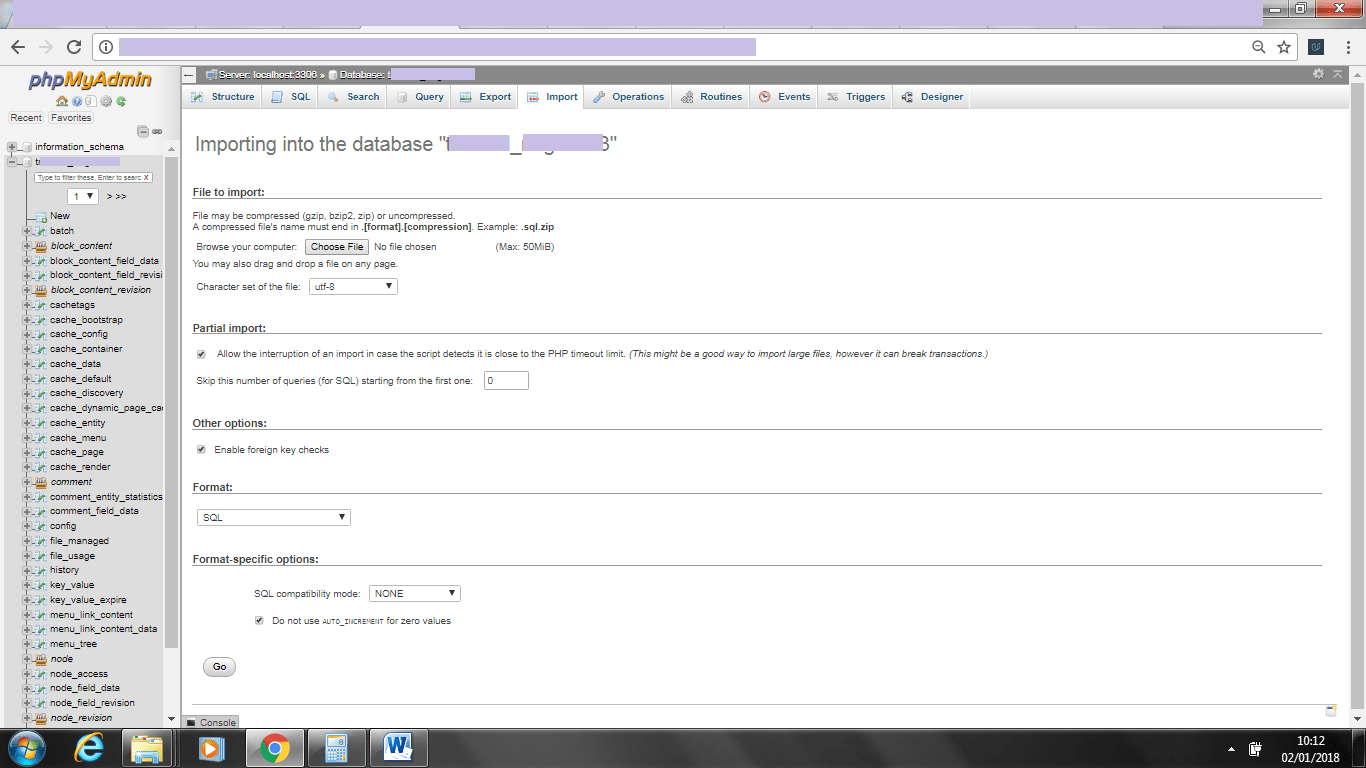
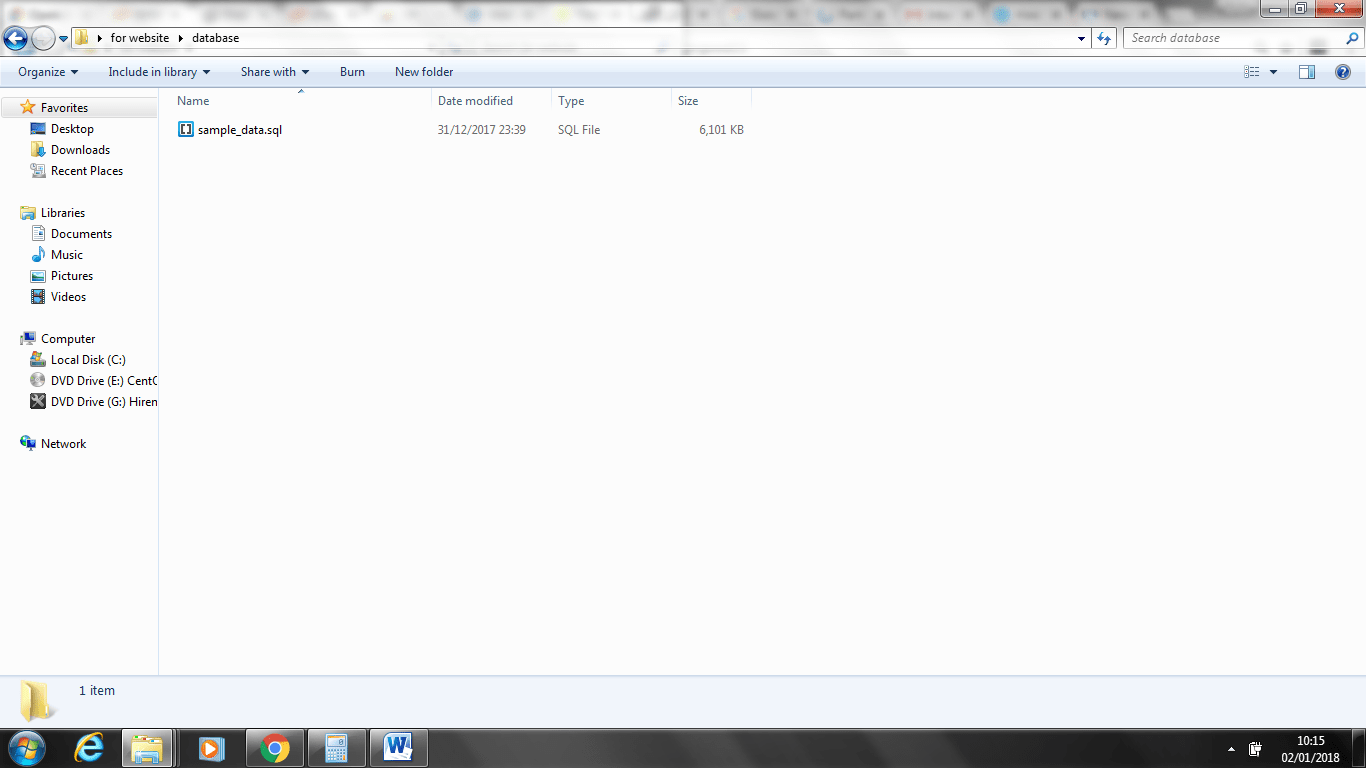
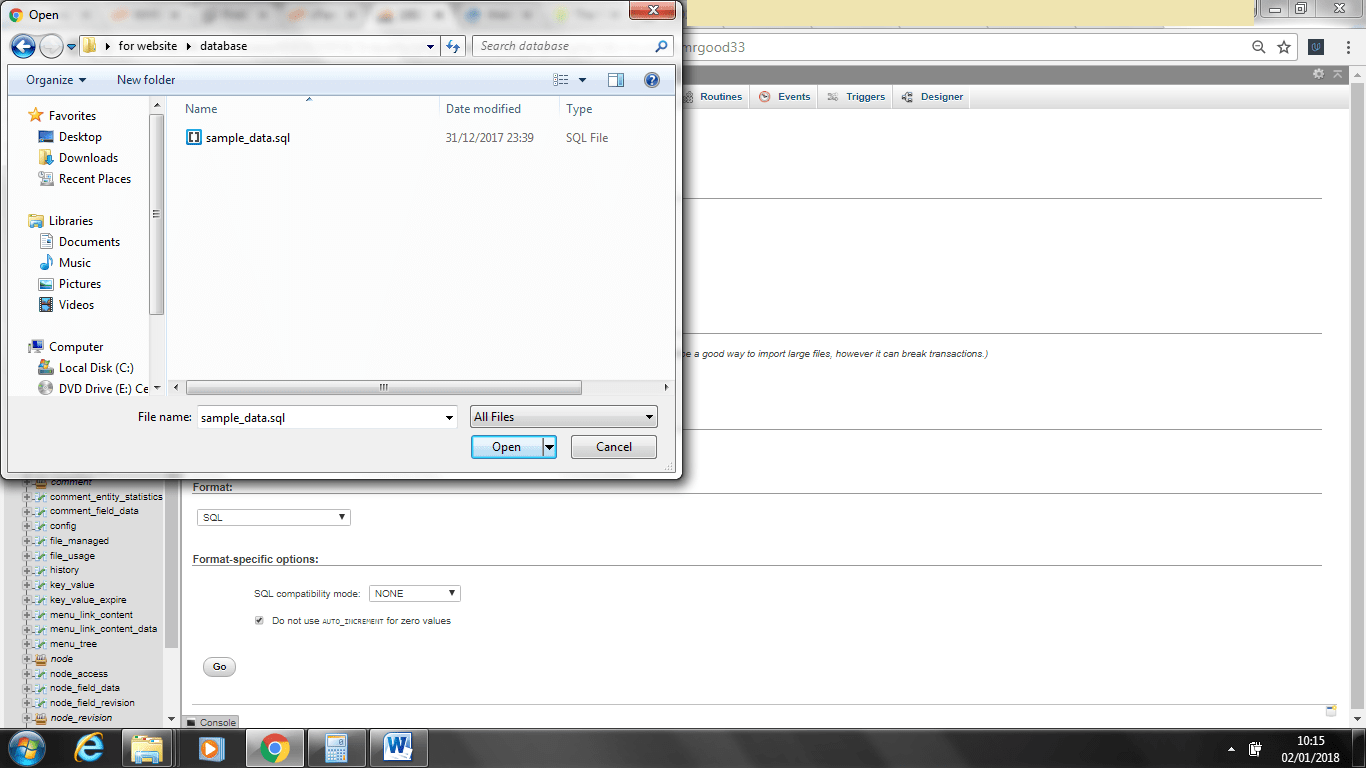
35 Zircon 35 start uploading the sample database it may take a little while.
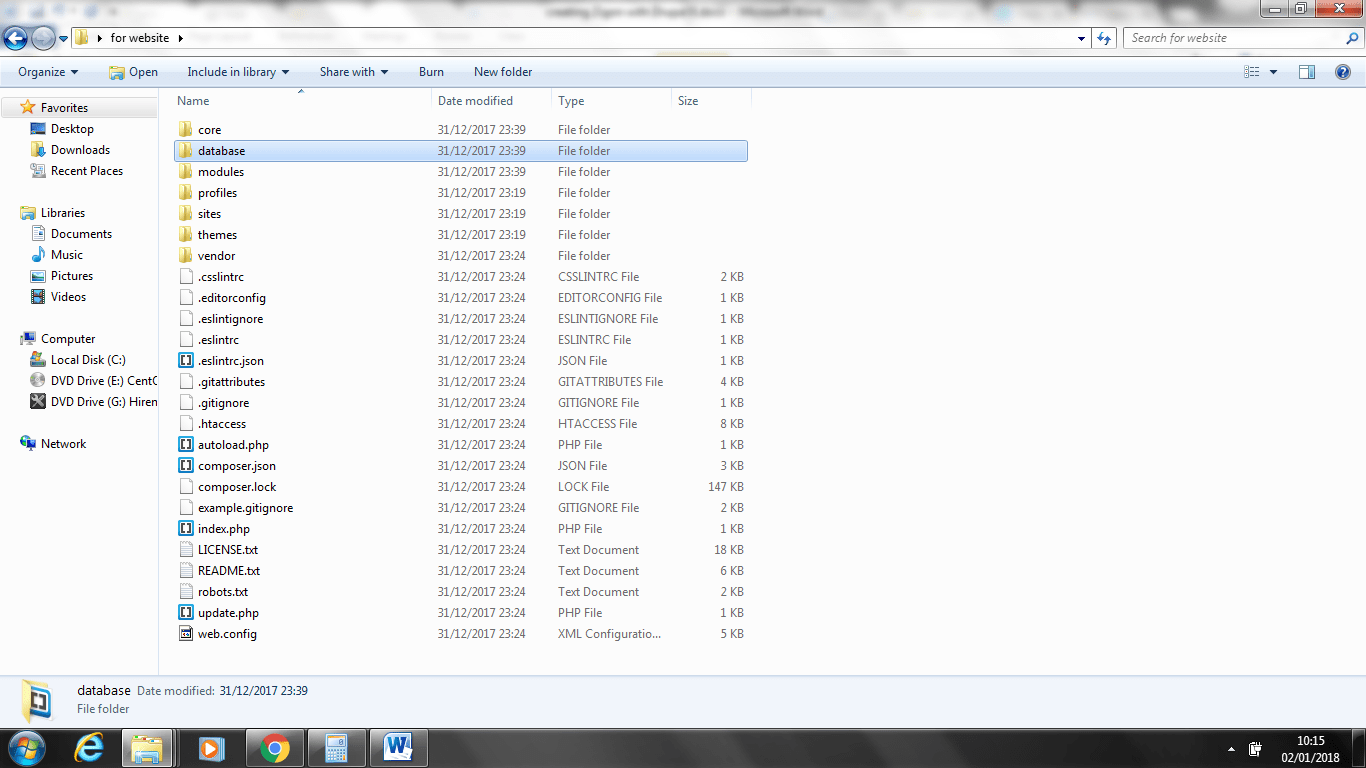
36 You should get a screen like above this confirms that the database was uploaded.
37 37 If you head over to your website it should be fully installed.
38

39

40