
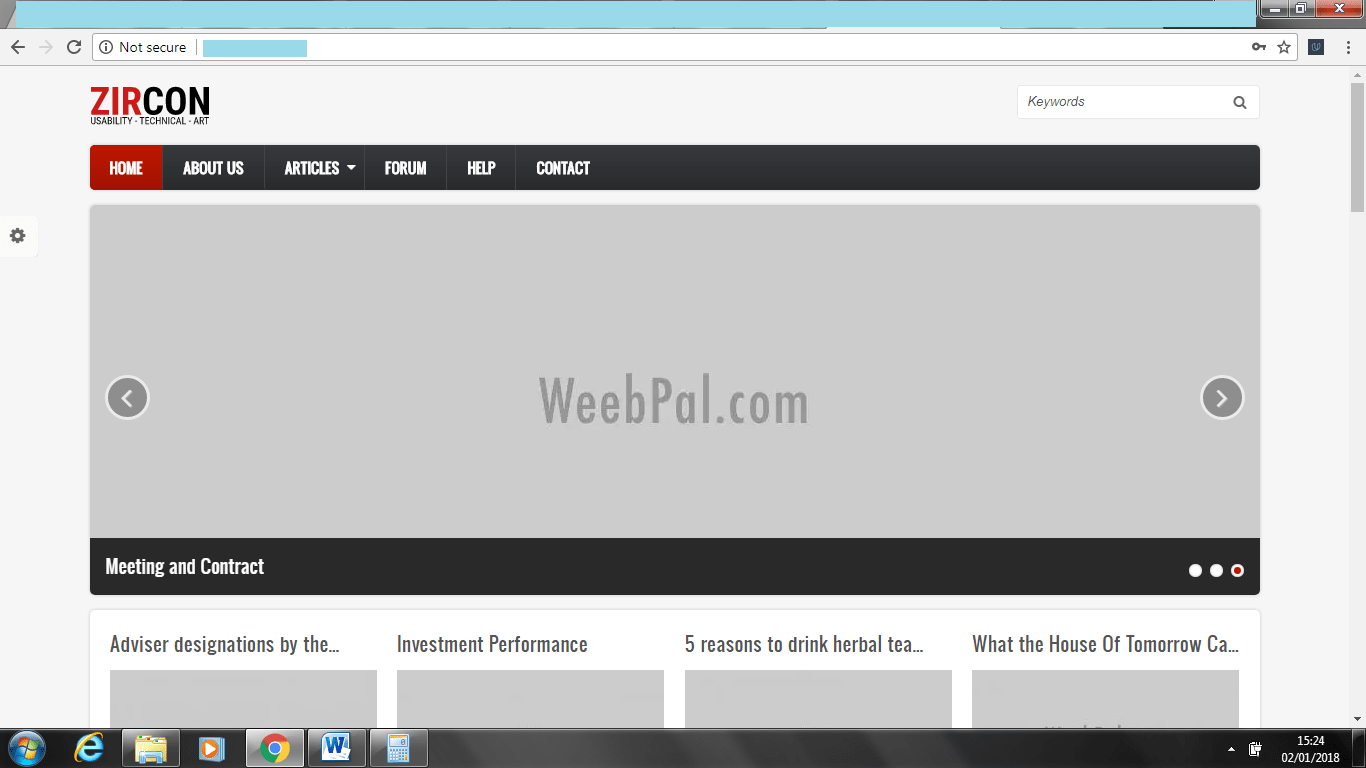
Have you been looking for a solution for building your next blog or website?
I recommend Drupal 8
I have choose Zircon because I know it’s a great theme. It also helps give your website a different look from everybody else. With a little bit tweaking here and there you can have pages loading in less than a second.
For the time being it is also the theme that I have chosen for my own website.
Reasons for choosing Drupal 8
- Great community of people who want to fix problems
- 99% of modules are free
- Drupal is pretty SEO friendly with a little bit of work
- Websites are built to handle heavy traffic
- Images are handled so much better than Drupal 7
You are going to need
File Zilla for uploading the theme and Drupal 8
https://filezilla-project.org/download.php?type=client
A hosting company I recommend first host I have used this host for quite a long time. There support is really good.
A domain name you can buy this with the same host of buy else where you can also use your own host. Make sure that you get cPanel as this will make your life a lot easier.
And the zircon theme
https://www.weebpal.com/drupal-themes/zircon-responsive-drupal-8-theme
Download the full package and the demo content.
1 First we head to our cPanel and at the top there is file manager click into the file manager. it should be towards the top.
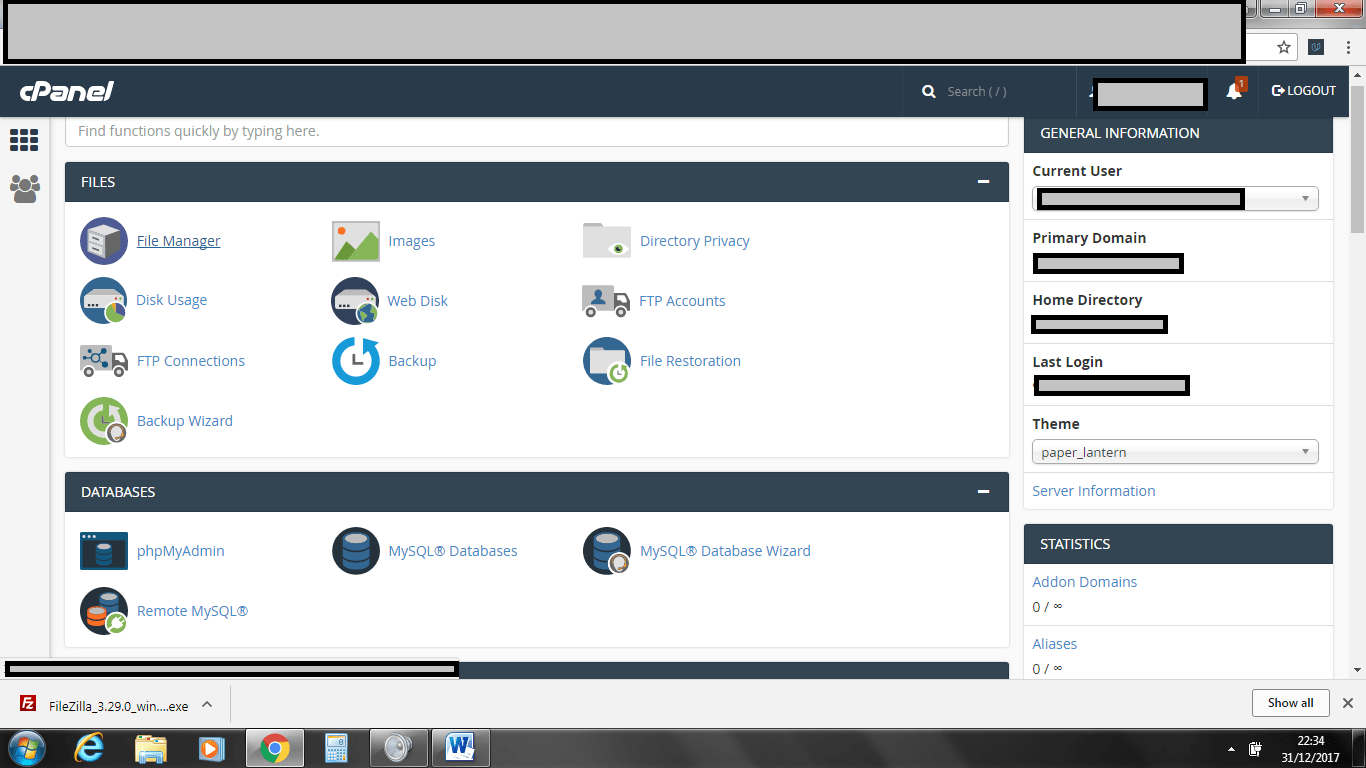
1 First we head to our cPanel and at the top there is file manager click into the file manager. it should be towards the top.
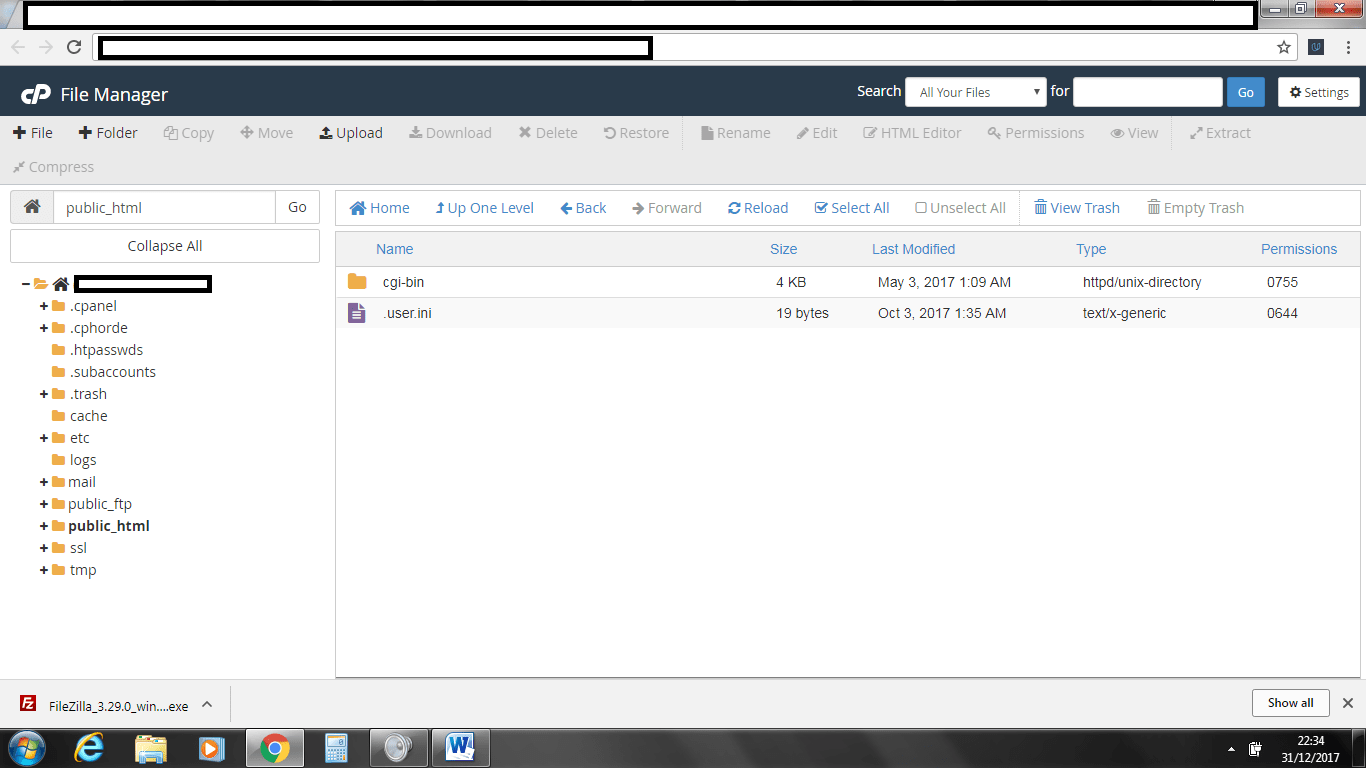
2 Click on public_html and create a file like you can see in the image. The file is called .user.ini
Note: if you cannot see the file once you have created it you will need to click on settings in the top right hand corner and click the box show hidden files (dotfiles). Simply add the following text. memory_limit = 256M
We create the above file so that Drupal has enough memory at it’s disposal. Some people might use php.ini this is fine as well as long as your host allows this.
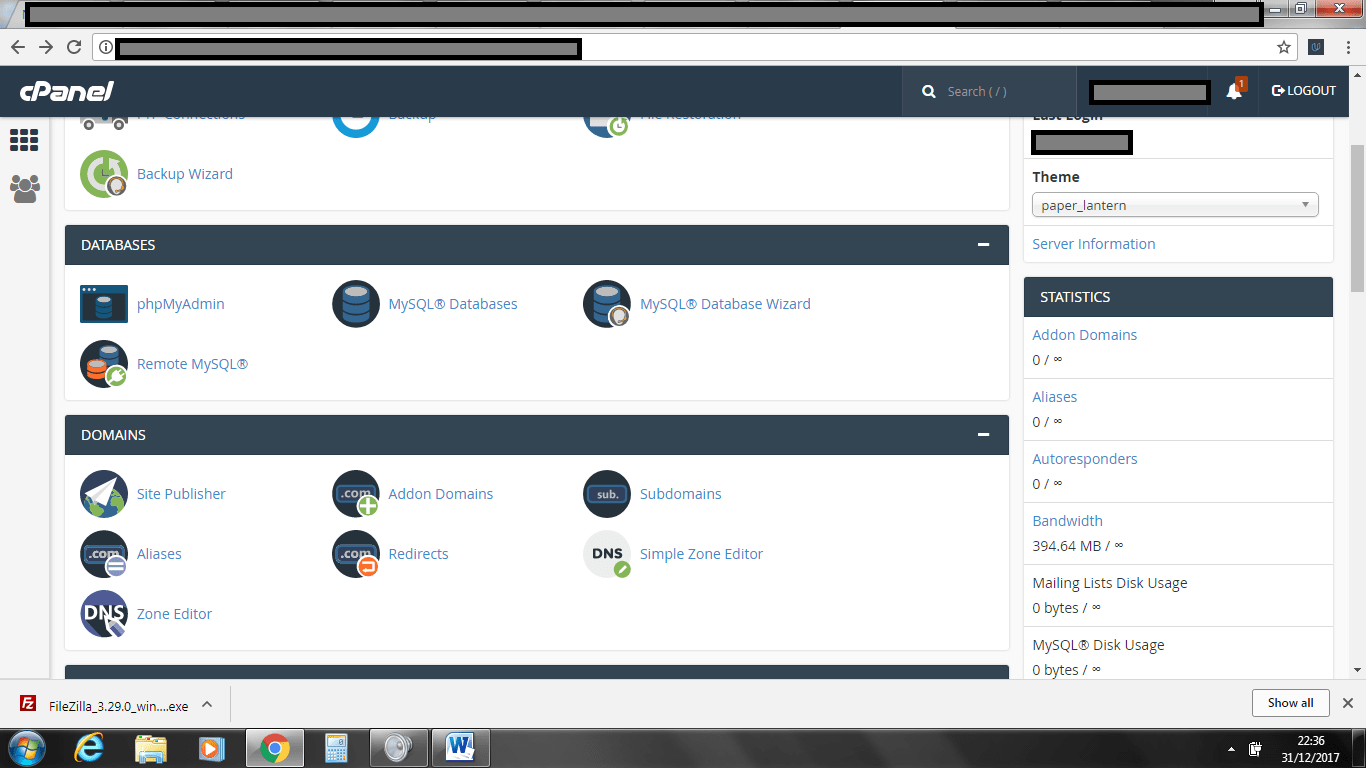
3. Head back to the cPanel main screen so that we can create a database next. You can create this manually but I would recommend if you’re quite new to stick to using the data base wizard.
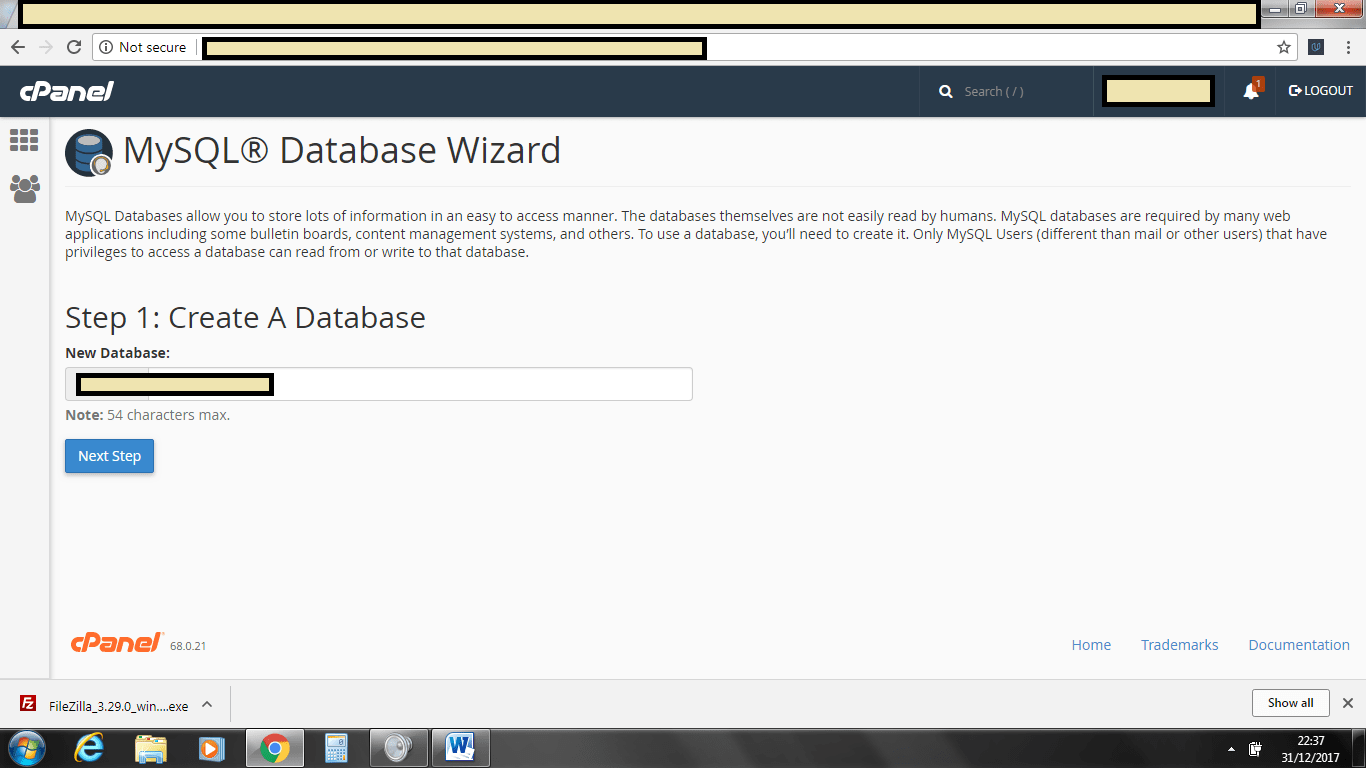
4. You can use just about anything you like for the database name. I usually add some weird number or letter to make it harder for someone to guess my database name. Don't forget when making this database to note down all the details.
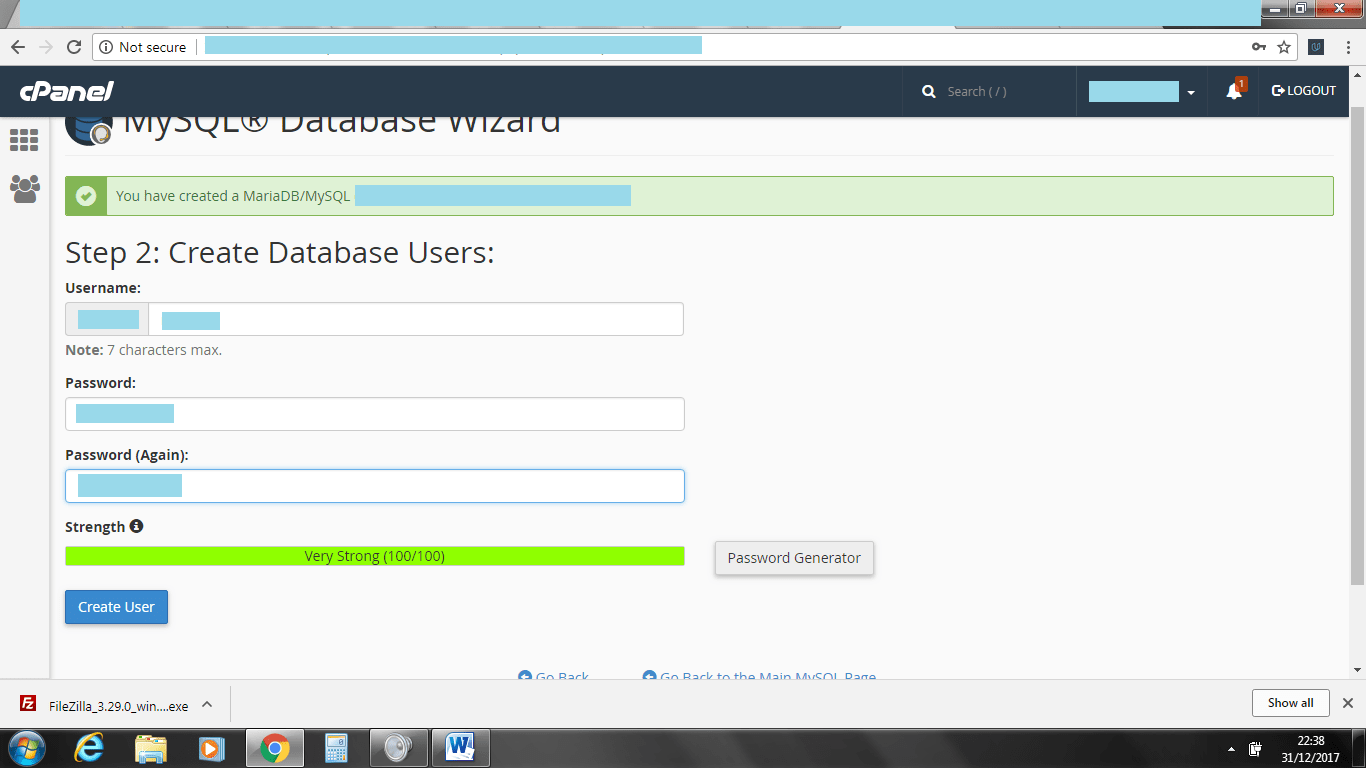
5. Once you have the user added and password you should see a screen like above. cPanel will confirm back what you have created.
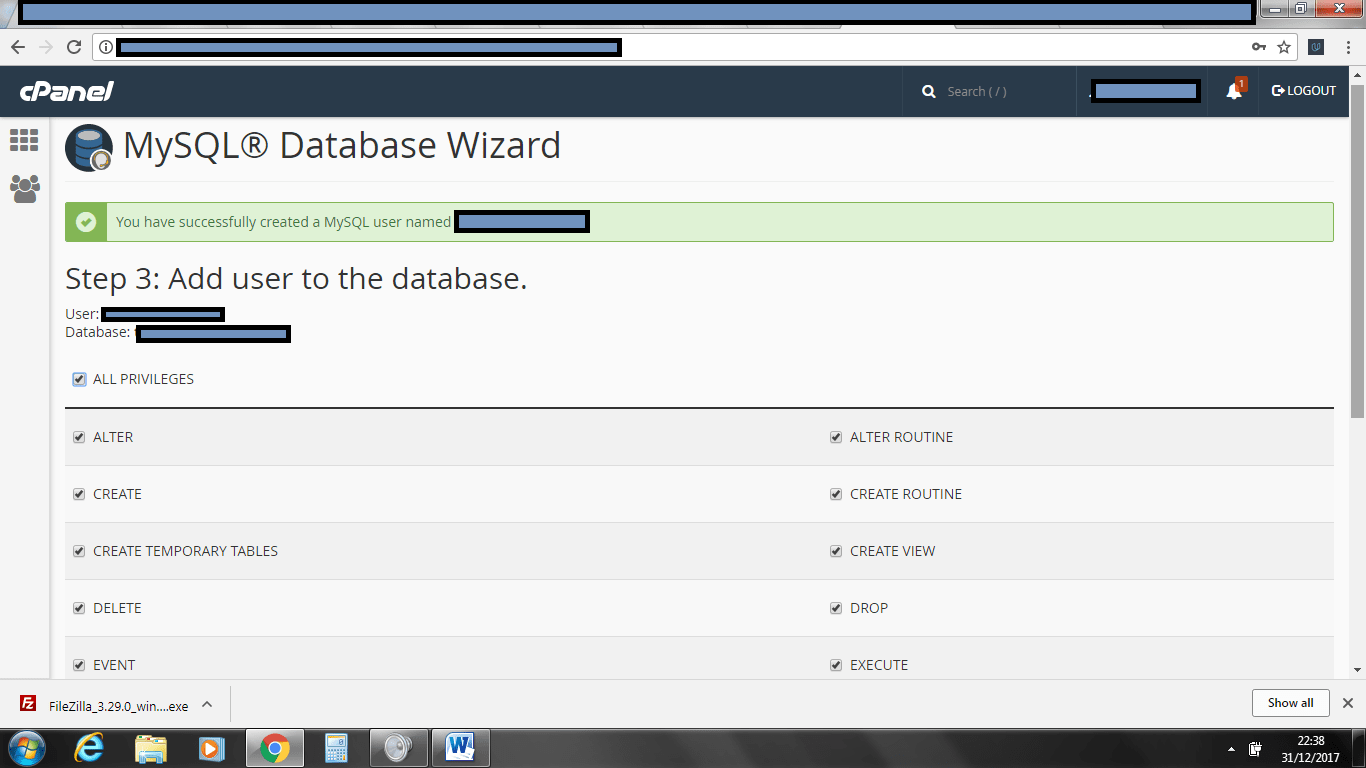
6 We need to allow all permission’s when this tab comes up. You should see a screen like above. This allows Drupal to fully access your database.
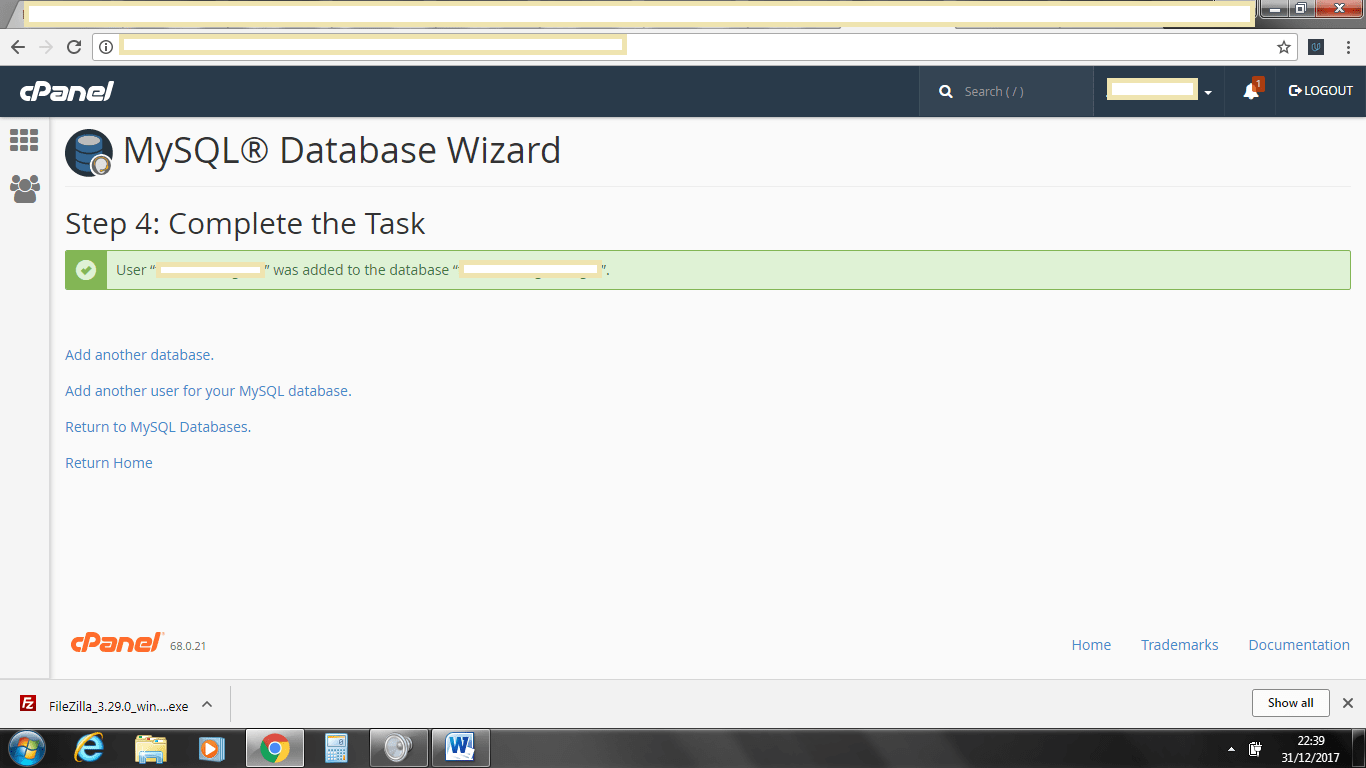
7. This completes creating your database and also creating a user and permission’s. cPanel will confirm this. If you have had any problems or error messages so far simply send a ticket over to your host it’s rare but does happen.
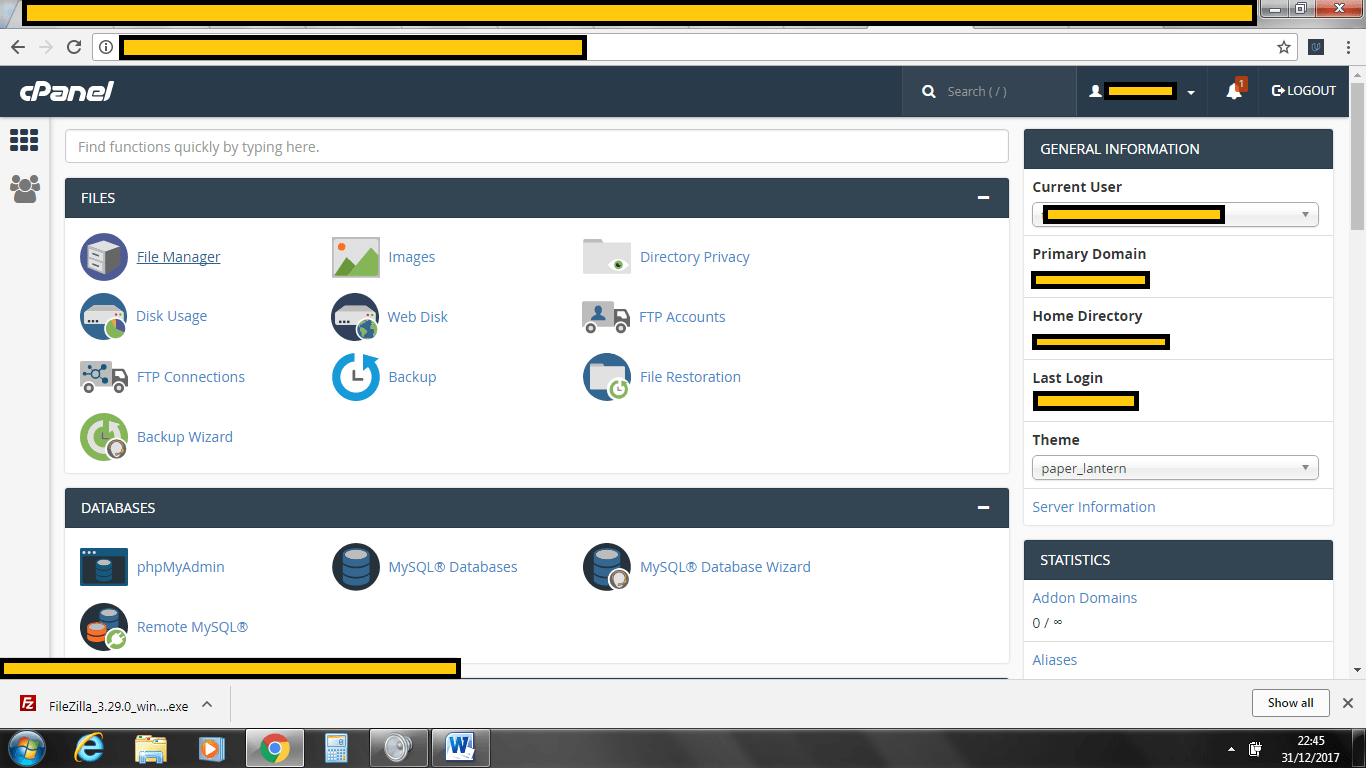
8. We need to head back to the front screen on cPanel. We are going to create a ftp account to so that we can upload Drupal 8 and Zircon. You will need to click on FTP accounts.
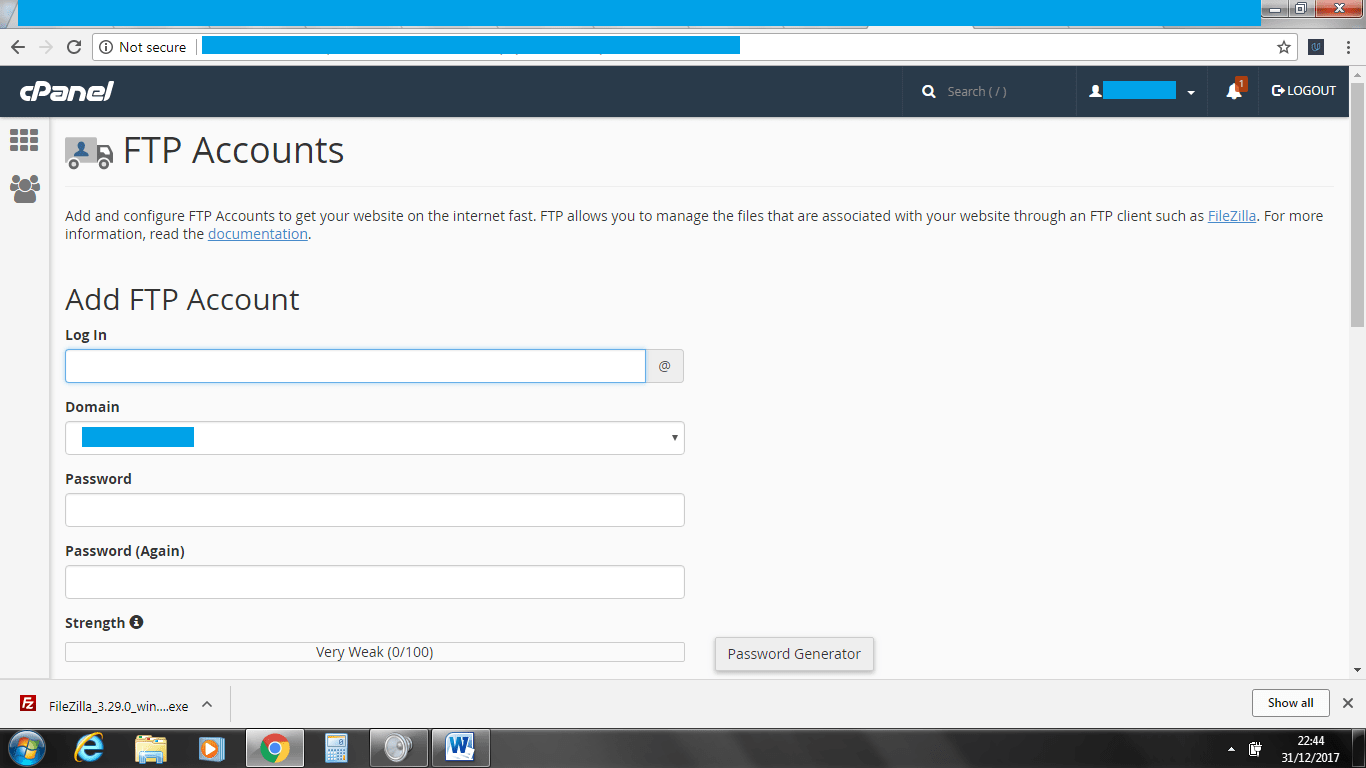
9 Creating a FTP account is not too complex, You need to create a name and password. Remember to write these down. Make sure when you create the path that you leave the public_html showing as this makes life a lot easier and means that your installation is at the base of your website.
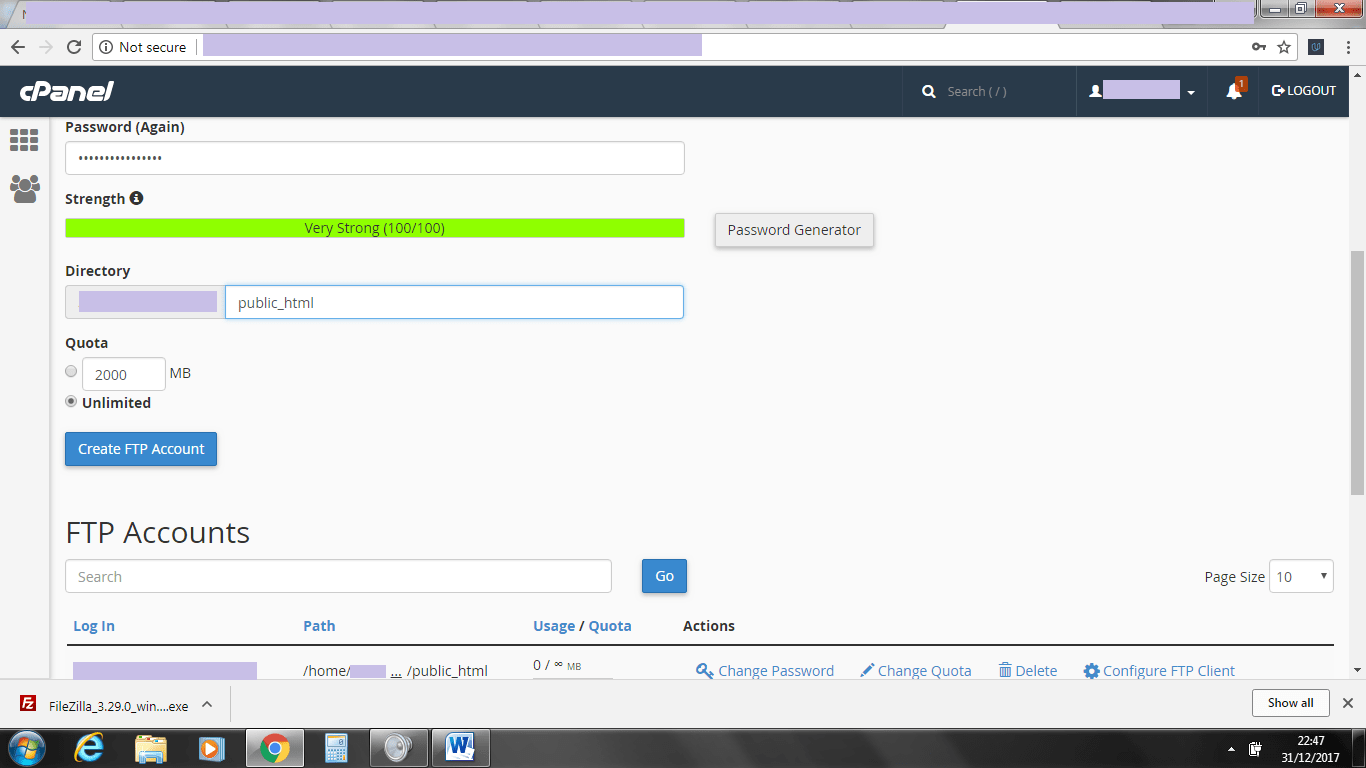
10. This should all take less than half an hour to complete. When creating your FTP account make sure you create a strong password. This completes getting your setup ready.
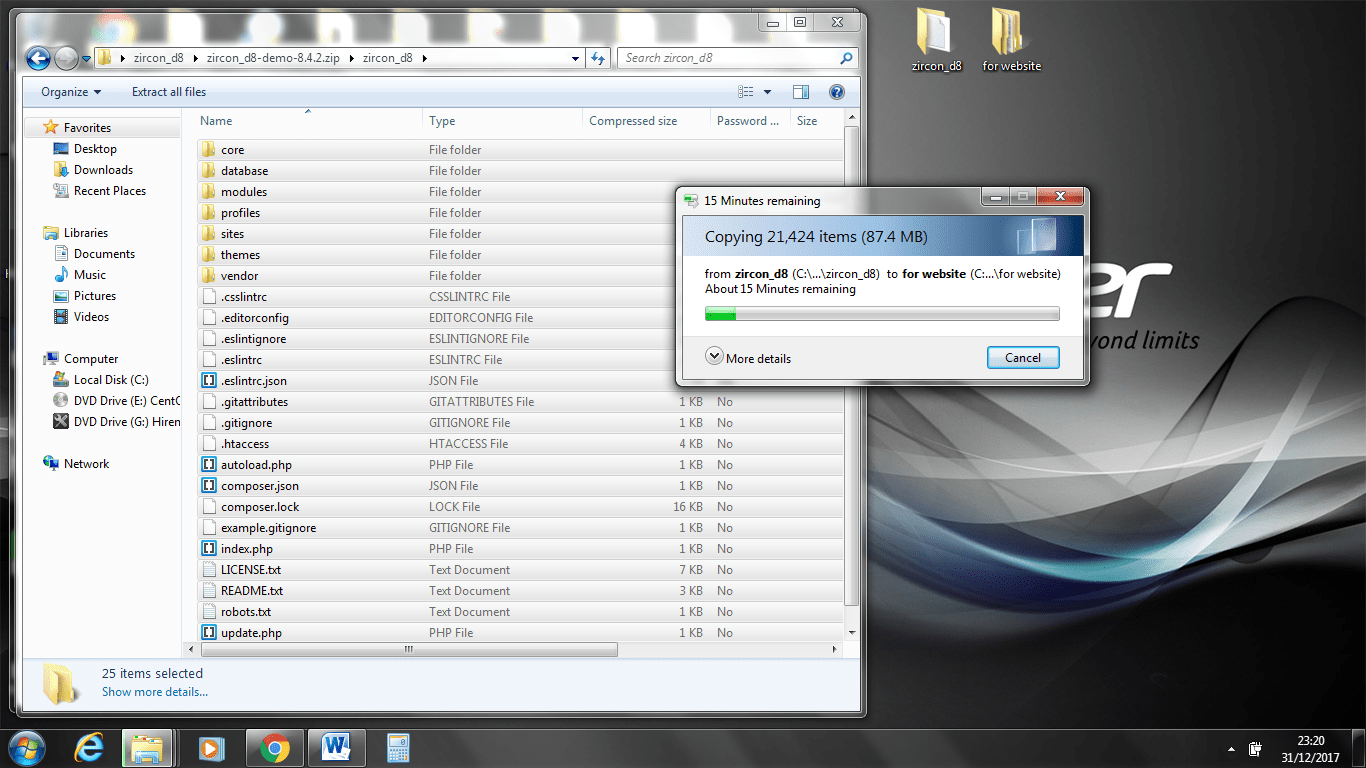
11 Download the zip file and open it open the zircon_d8-demo-8.4.2.zip and then open zircon_8
https://www.weebpal.com/drupal-themes/zircon-responsive-drupal-8-theme
Create a folder call it for website or something like that.
Extract all the files from inside zircon_8 in the the folder
zircon_d8-demo-8.4.2.zip
We could skip this and just upload the files direct to filezilla but it can take more time if you have an older pc or laptop.
Once you have done this it is time to run fileZilla once you have done this open it.
https://filezilla-project.org/download.php?type=client
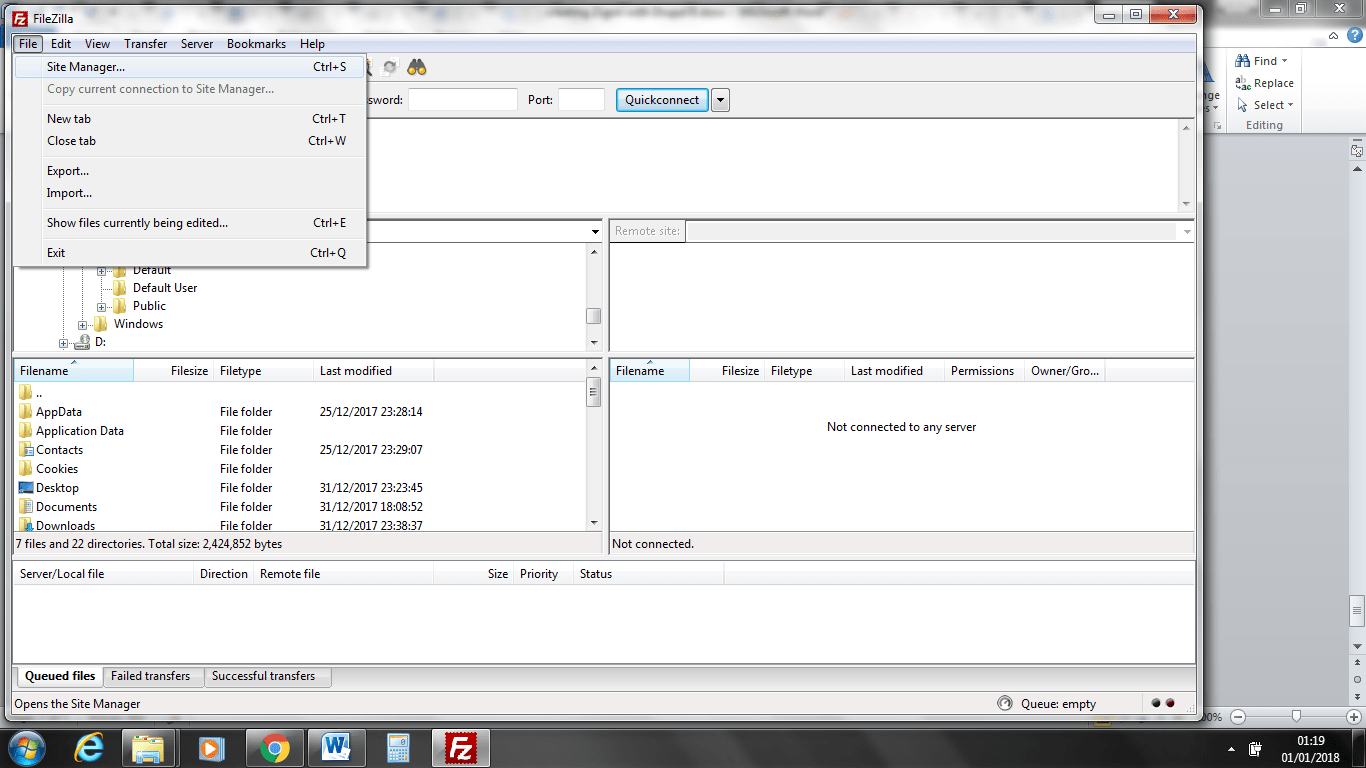
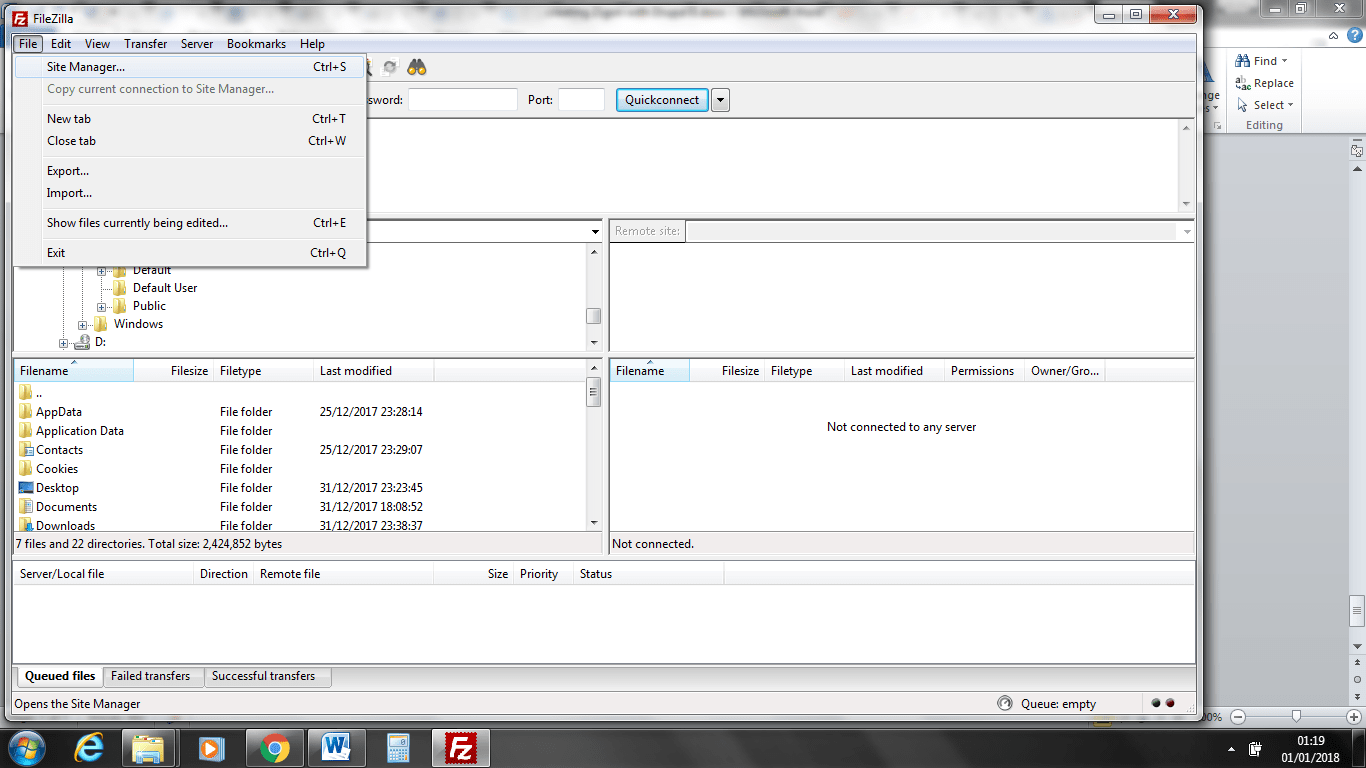
12 You don’t need to worry about all the options if you have never used Filezilla. I know it can look pretty complex to start with. Click on file then click on site manager. You might remember earlier on we created ftp access we are going to need them details to enter in here.
Your host will most likely be your site with ftp.mysite.co.uk or if you are America it would be ftp.mysite.com
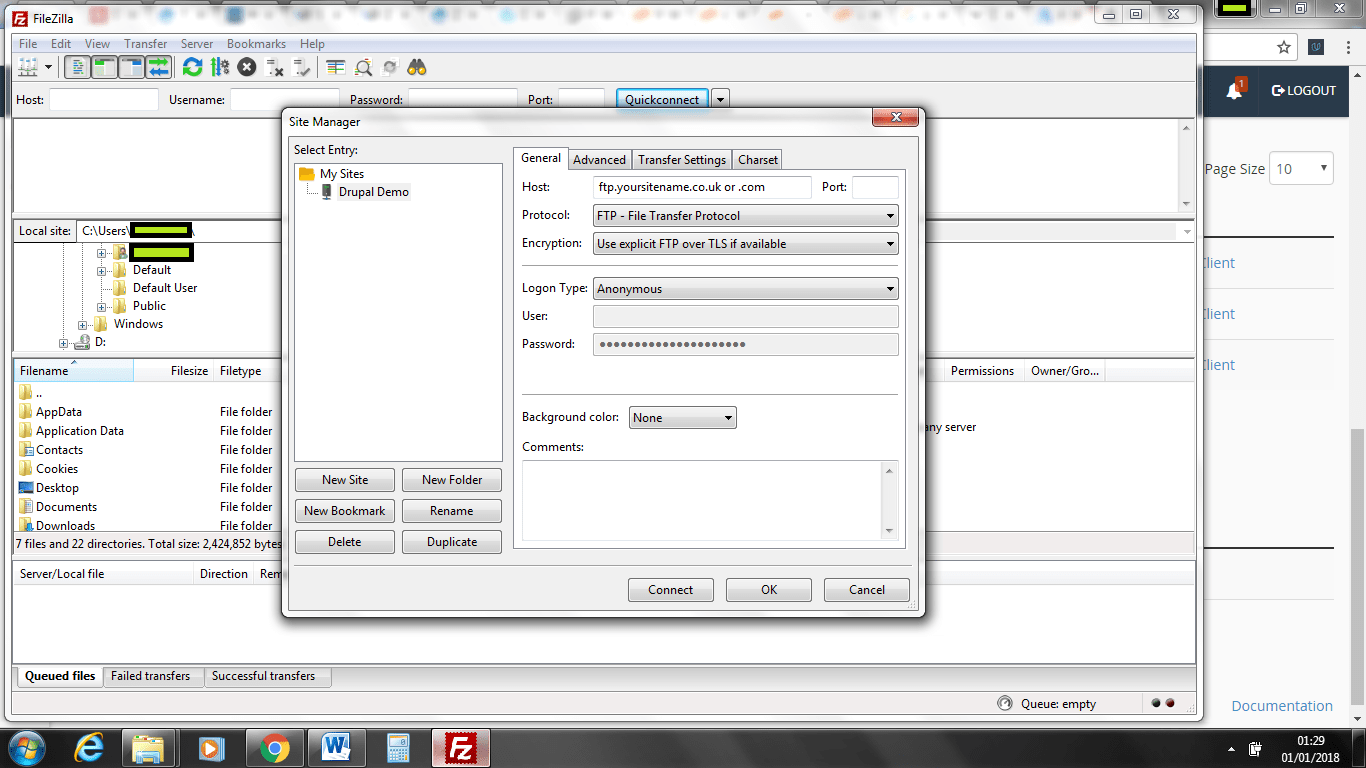
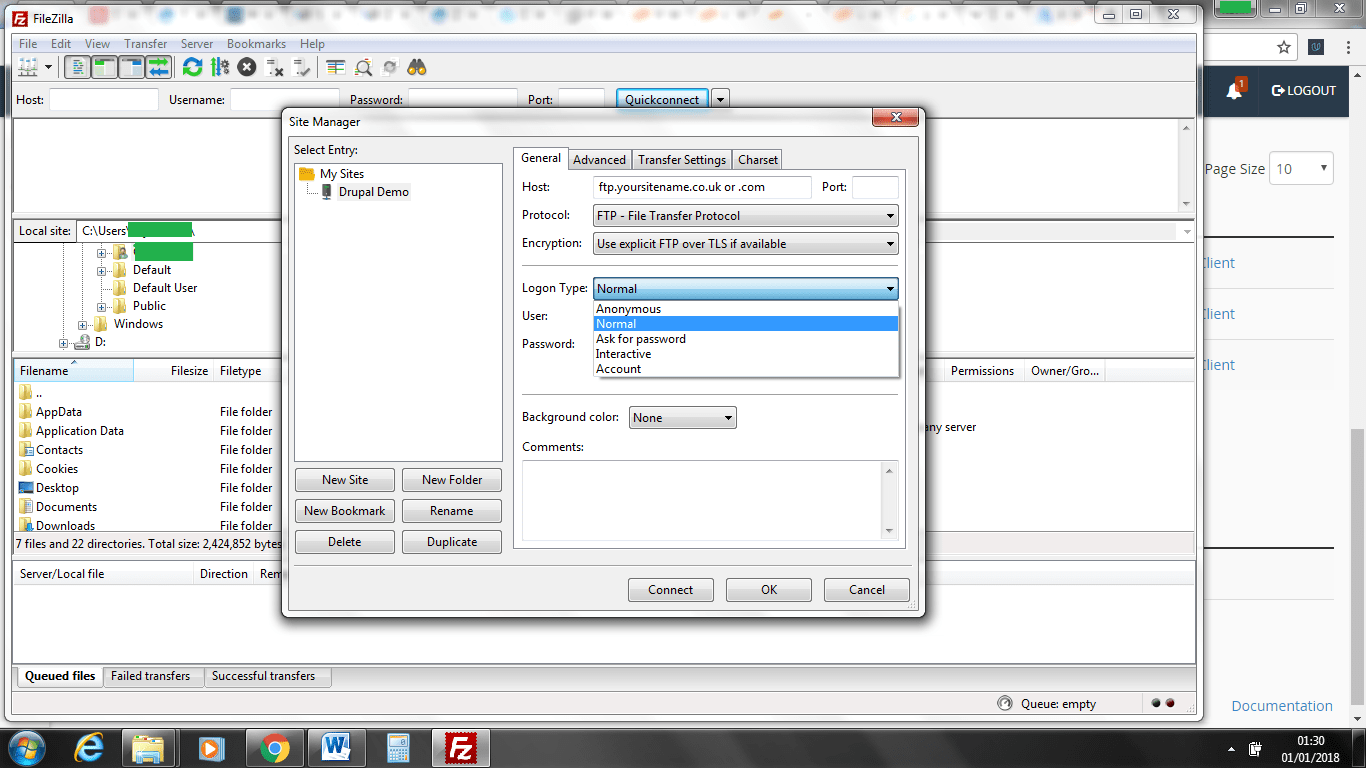
13. Change the login type to normal like shown bellow.
14 enter your user name and password that you created earlier in cPanel. The details you need here are the ones that were created in FTP accounts.
15 Click connect and you should get a screen somewhat like above. If you are getting error messages it can be your password or user name. The more common problem is your ip is blocked if this is the case contact your host as they will be able to help you figure this out. To help your host take screen shots of the error messages.
You may get a screen like above just say ok. Check that you are connecting to your hosting account
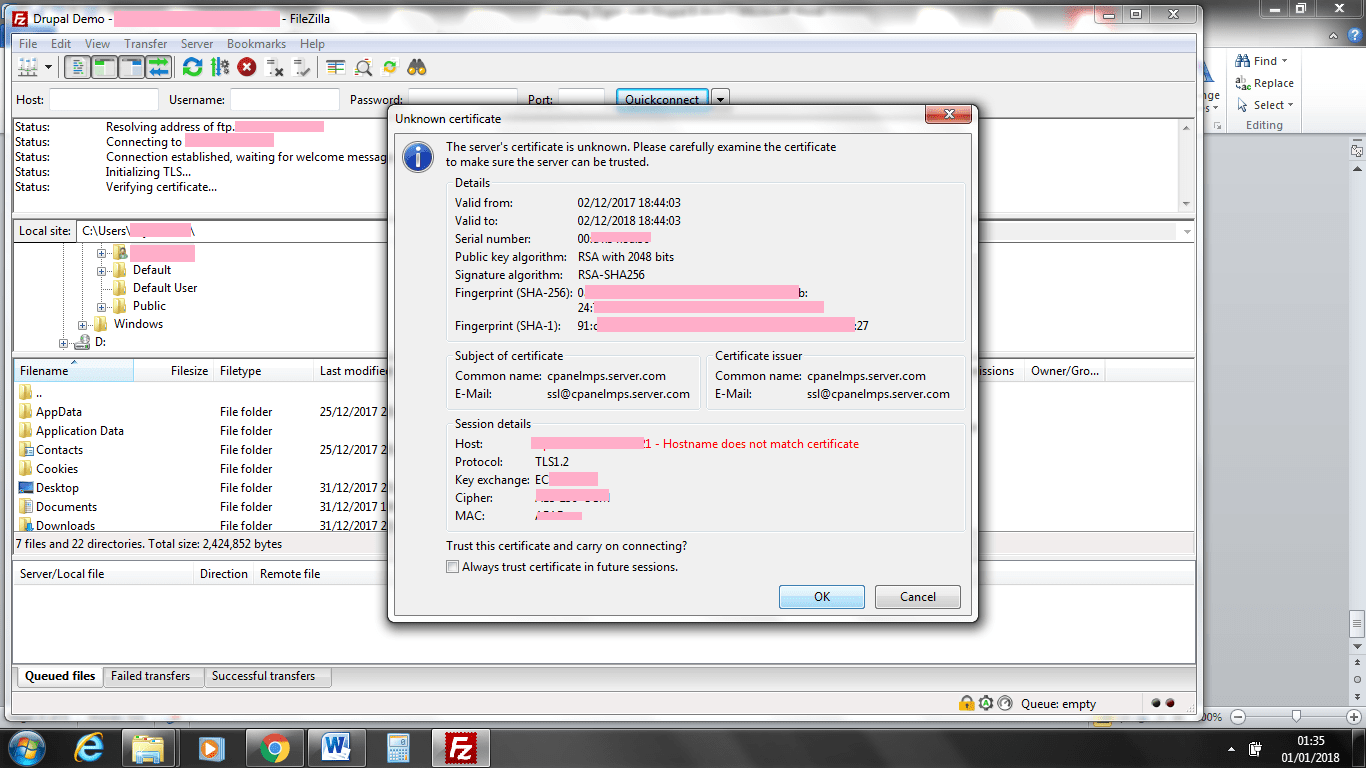
16 Once you are logged in you should get a screen like above.
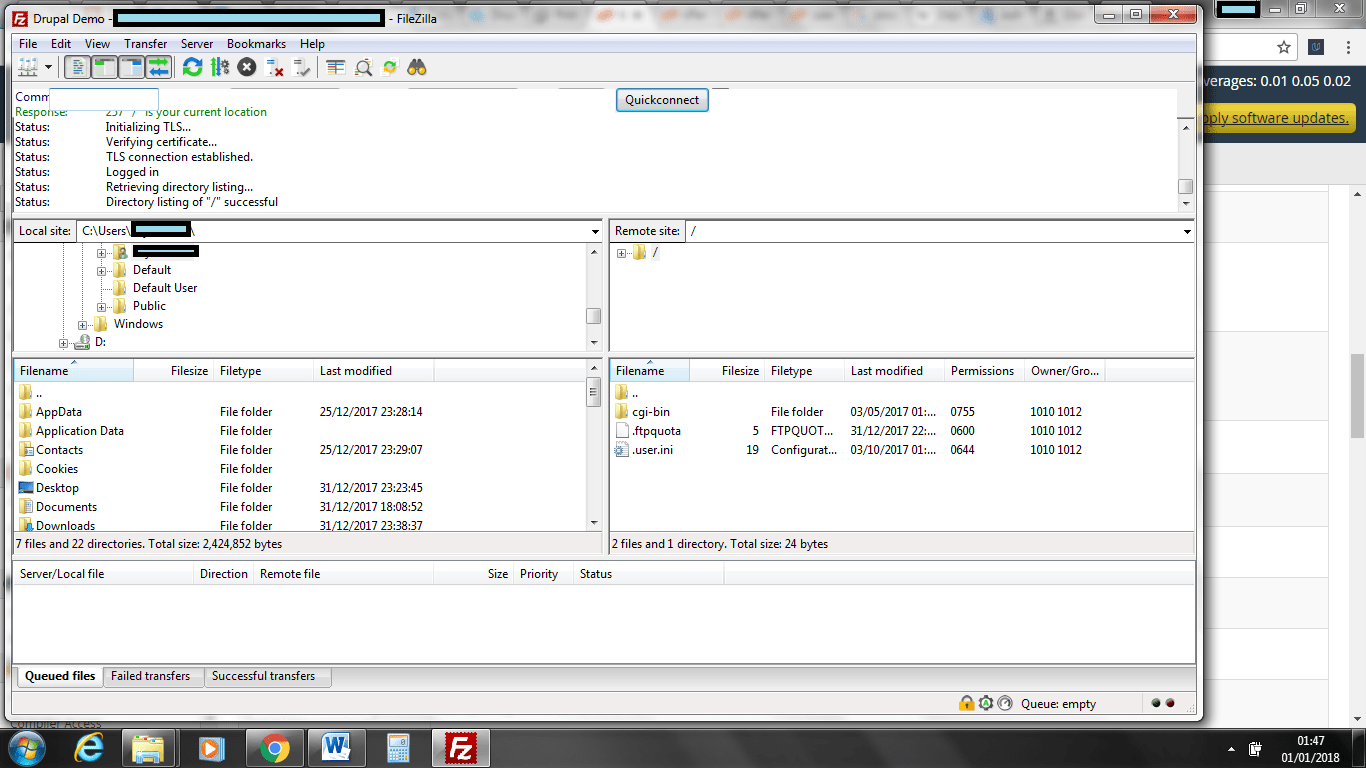
17 You unpacked Zircon and its demo content earlier and created a folder like forweb. Now you need to drag that full folder to the bottom screen in FileZzilla. You need to drag the full contents of the folder and not the folder itself.
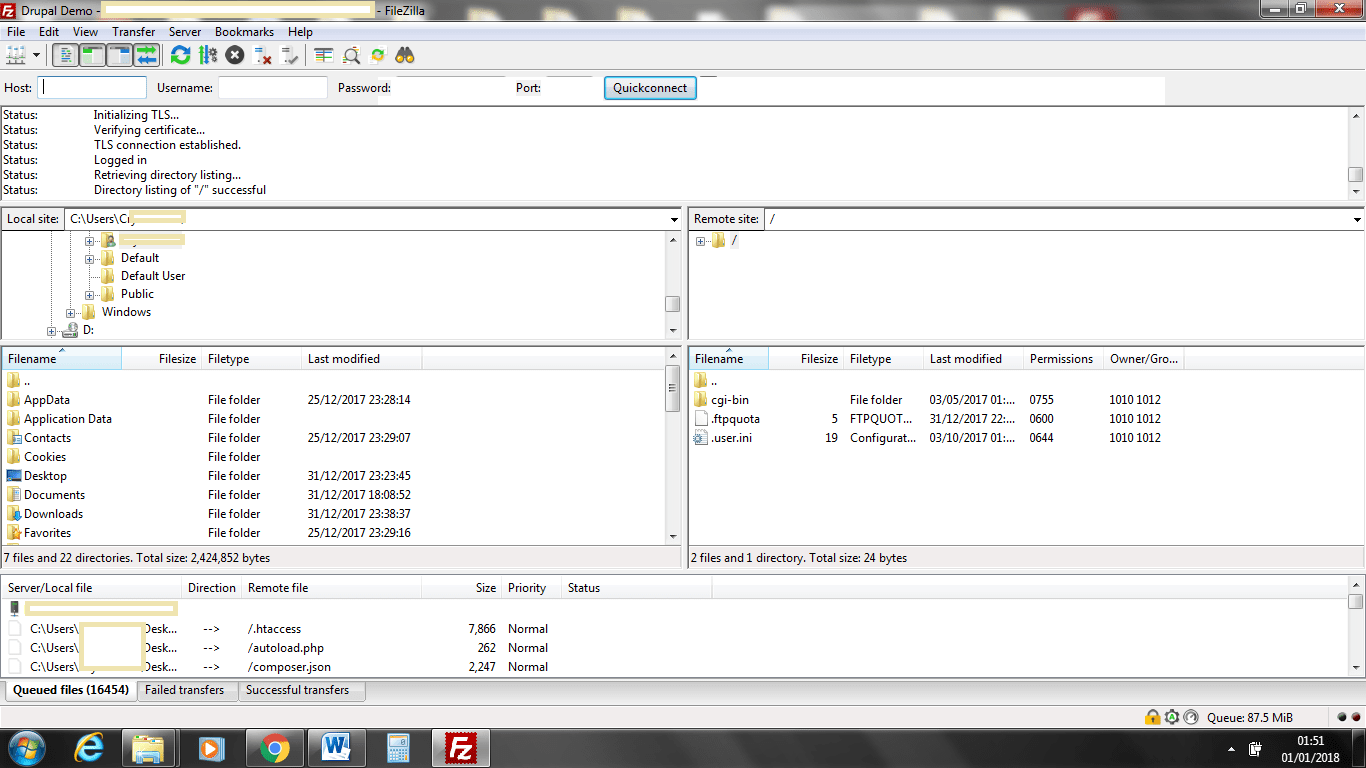
18 Now all the files are up its time to right click and press process queue. Wait up for a little because it is more than likely there will be a file that is already up there.
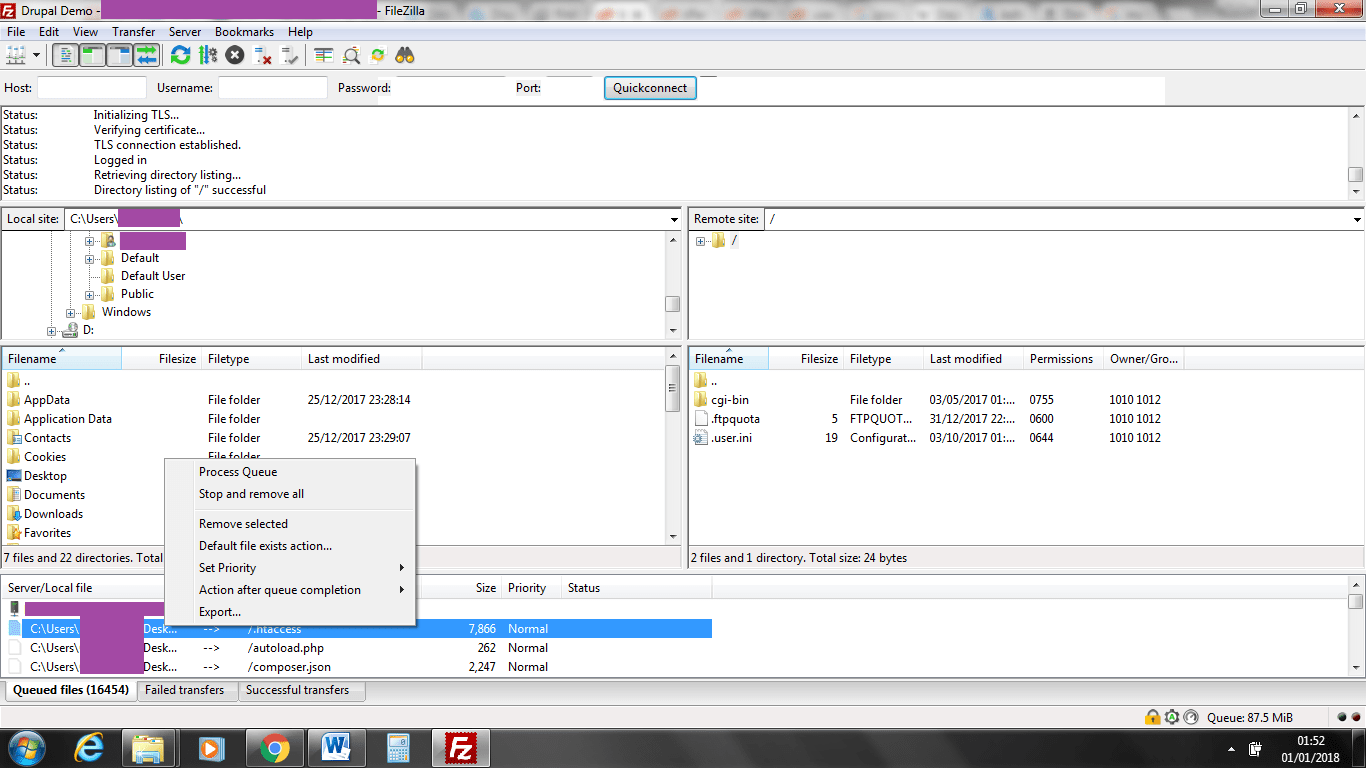
19. Click over write if it’s not already clicked and also click always use this action
The next part is going to take quite a while depending on what type of connection you have.
You can leave this going over night but remember to tell your computer not to shut down or hard disk shut down as there is a finale step once this is finished
Once all the files over check that no files got left like bellow
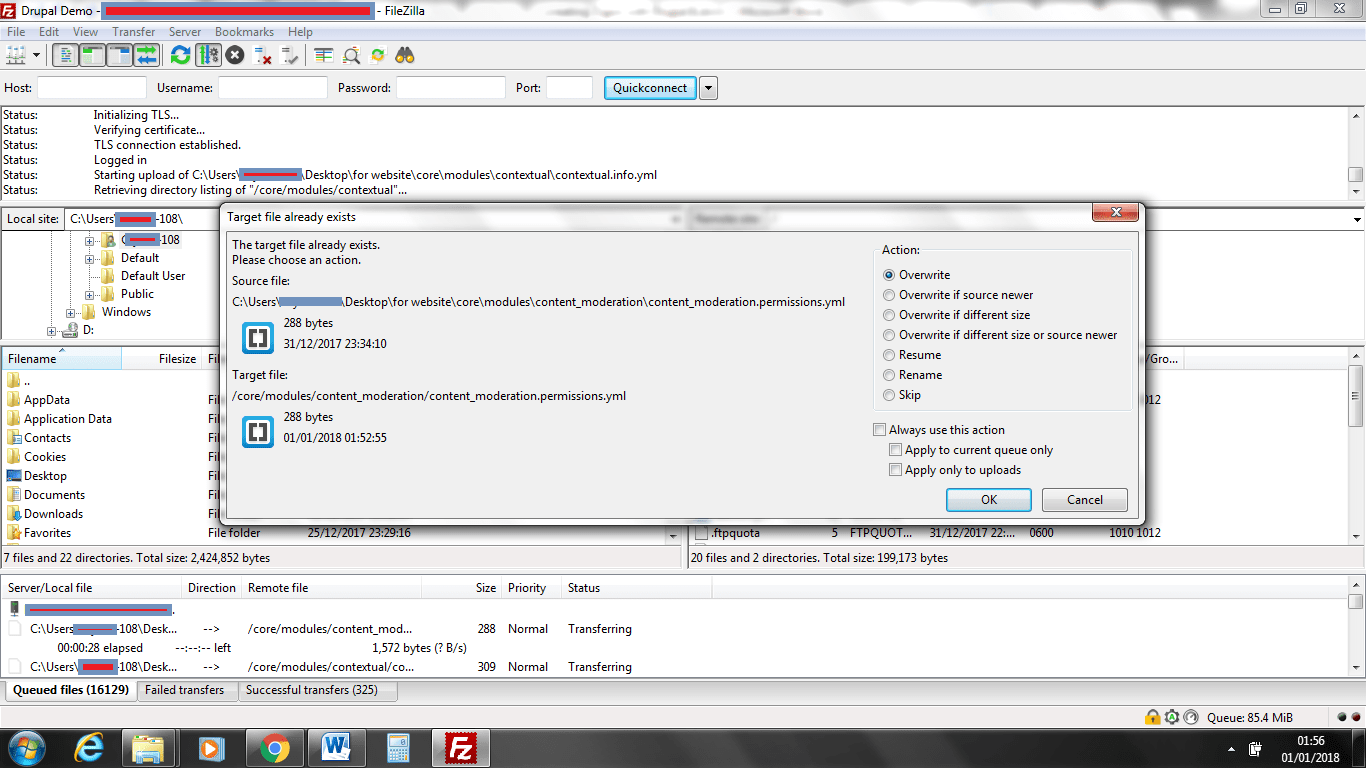
20 We can see there is a few files left we will deal with these next.
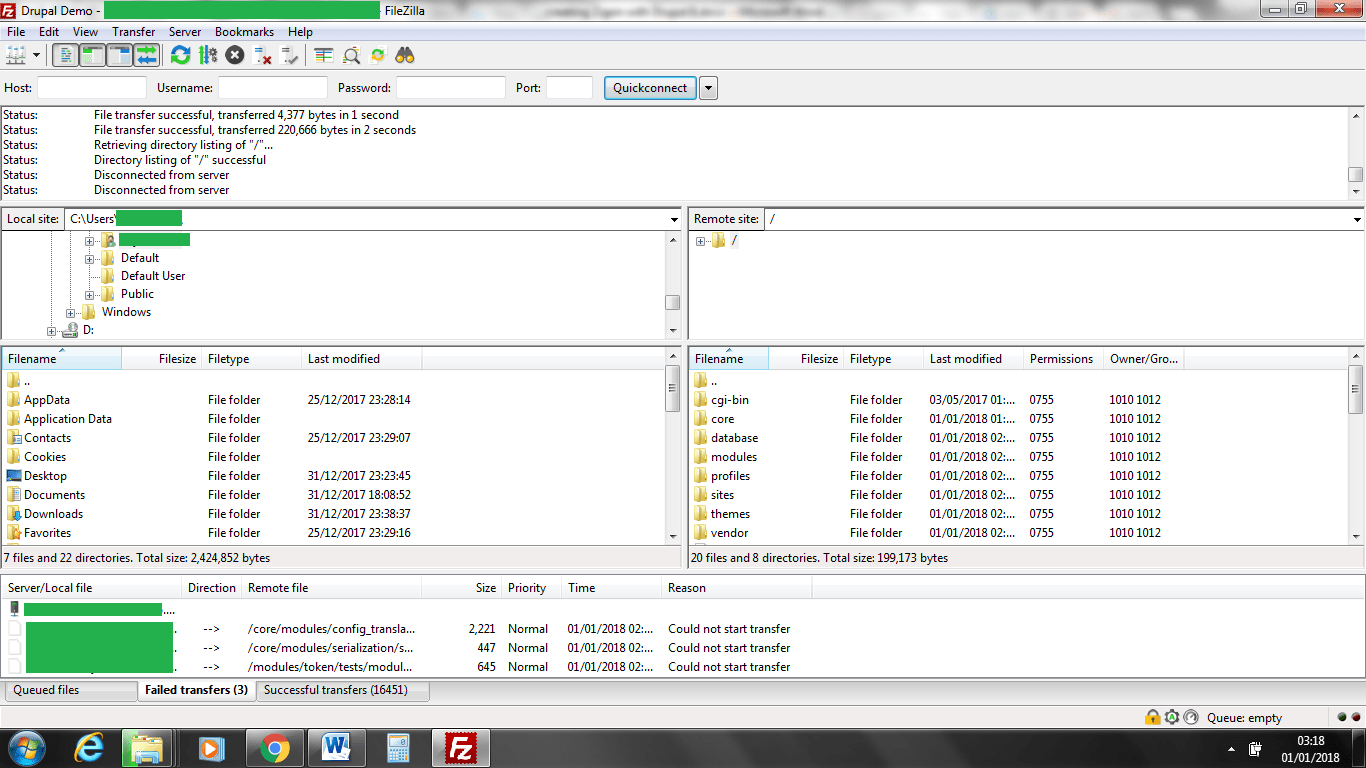
21
click on the right hand again and process queue.There should be no files left in failed transfers or queued files.Now you are all done with Filezilla and you can close the application
The website should be fully uploaded and its time to install
For part 2 https://kbos2hm.co.uk/workshop/installing-zircon-drupal-8-cpanel-part-2